Insurance
 AI
AI
 Health Care
 Construction
 Financial Services
 Mobile
 Real Estate
 Project Management
 Solutions
At Rheal Software, we understand that managing claims efficiently is at the heart of every successful insurance and restoration business. That’s why we’ve been working closely with industry professionals to build a robust, modern Claims Management System (CMS) designed to streamline every step of the claims process.
Our CMS is crafted to handle the unique workflows and compliance needs of insurance companies, adjusters, and restoration contractors, while being intuitive enough for teams to adopt quickly. We’ve focused on creating a platform that not only digitizes your operations but also gives you clear visibility and control over your claims pipeline.
We’re excited to share with you the key modules we’ve already delivered and provide a glimpse into the powerful integrations and features that are currently in progress. This case study outlines the journey so far, the capabilities you can leverage right away, and what’s coming up next.
Key Features and Capabilities
Our Claims Management System is designed to streamline the complete claims lifecycle through configurable workflows, automation, and centralized operations. The platform provides a comprehensive set of tools that enhance operational efficiency, improve visibility, and support scalable claims processing.
Also, RhealCMS uses AI-powered resume parsing to automatically extract and validate adjuster information from applications, create adjuster profiles, and send welcome emails—streamlining the onboarding process while reducing manual effort.
AI-Driven Code Development
AI-assisted code development was used to accelerate implementation by generating code suggestions, reusable components, and initial solutions for repetitive development tasks. This helped reduce development effort, improve productivity, and allow the team to focus more on business logic, validation, testing, and delivering features faster.
Key Features and Capabilities
Our Claims Management System is designed to streamline the complete claims lifecycle through configurable workflows, automation, and centralized operations. The platform provides a comprehensive set of tools that enhance operational efficiency, improve visibility, and support scalable claims processing.
Adjuster Management
- Adjuster Onboarding & Registration
- Adjuster Approval, Rejection & Information Request Workflow
- License, Certification & Document Management
- Adjuster Skills & Capability Management
- Bulk Adjuster Import
- Activity Logs & Audit Trail
Insurance Company Management
- Insurance Company Profile & Details Management
- Company Guidelines & Operational Rules
- Claim Workflow & Task Configuration
- Line of Business (LOB) Management
Claims Management
- Claims Listing & Claim Entry
- Coverage Information Management
- Claim Notes & Collaboration
- Document Management
- Claim Task Management
-
Claim Inspection Management
- Roof Inspection
- Interior Inspection
- Exterior Inspection
- Detached Structure Inspection
- Inspection Report
- Bulk Claim Import
- Bulk Claim Assignment
- Bulk Claim Transfer
- Data Change Logs & Audit Trail
-
Invoice Management
- Invoice Listing
- Invoice Creation & Editing
- Invoice Preview & Printing
- Invoice Payment Tracking
Adjuster Payout Management
- Adjuster Payout Calculation & Review
- Payout Approval Workflow
- Payout Processing & Payment Management
Adjusting Firm Management
- Adjusting Firm Setup & Management
- User Management for Adjusting Firms
- Claim Visibility & Status Monitoring for Firms
Fee & Billing Management
- Fee Configuration & Management
- Adjuster Payout Fee Setup
- Flexible Fee Structure Management
Description of Current Features:
So far, we’ve successfully implemented several core modules that form the backbone of the Claims Management System. Let us walk you through what’s available today:
1. Adjuster Onboarding
We’ve streamlined the process of bringing new adjusters into your system. Whether you’re onboarding independent adjusters or internal staff, our onboarding module captures all necessary details, credentials, and compliance documents in a structured way. This means less back-and-forth paperwork and a faster start to handling claims.
Watch the video demonstration to see the Adjuster onboarding functionality in action: Adjuster-1.mp4 and Adjuster-2.mp4.
-
AI-Powered Resume Parser & Automated Adjuster Onboarding:
RhealCMS streamlines the adjuster onboarding process through an AI-powered Resume Parser. Applications received through a dedicated email account are automatically identified, and attached resumes are securely uploaded to Azure Blob Storage. Claude AI analyzes each resume and extracts key adjuster information into a structured format. The data is then validated against RhealCMS business rules before creating the adjuster record. A welcome email is automatically sent to the newly added adjuster, allowing them to log in and complete their profile.
-
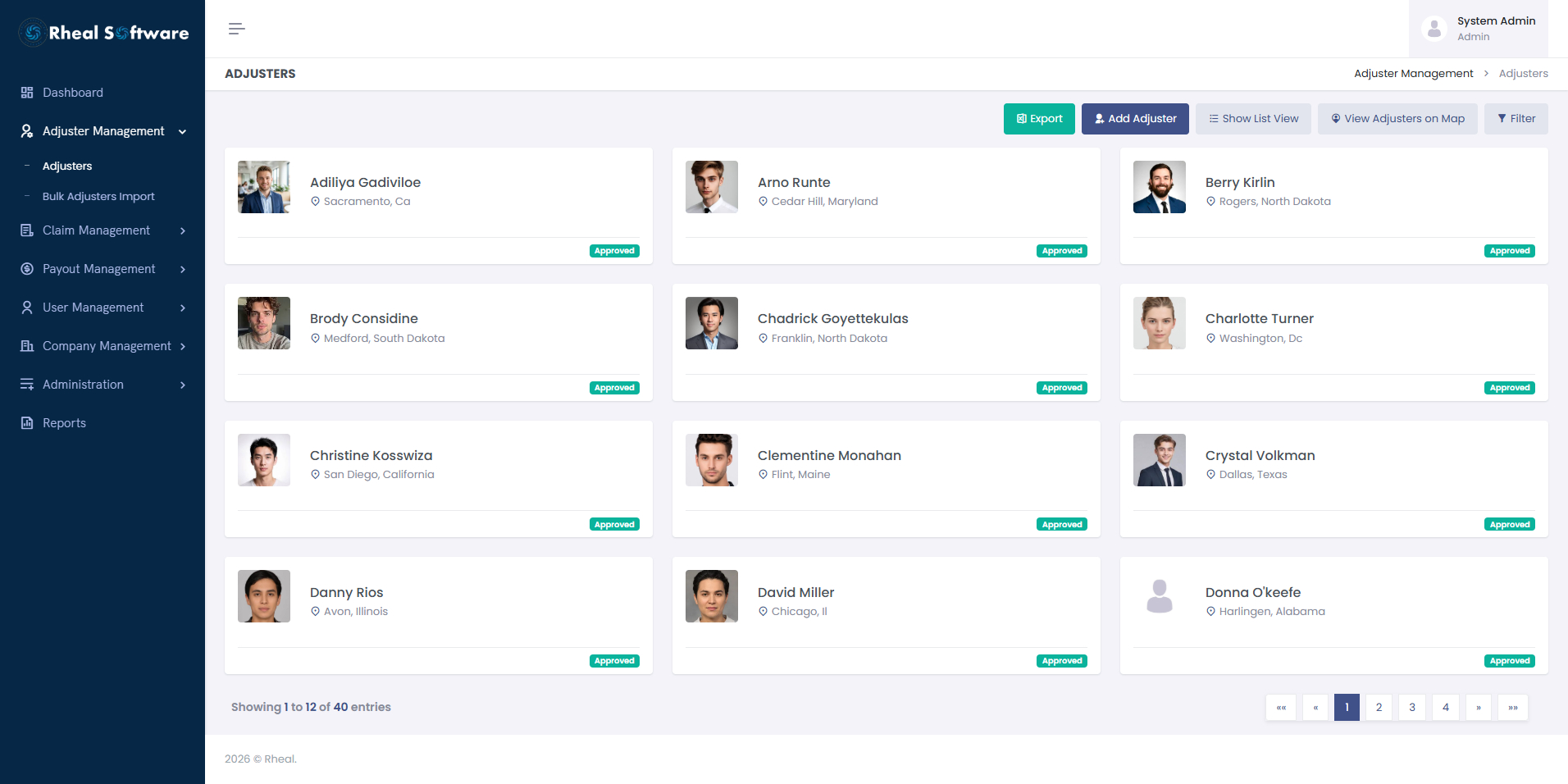
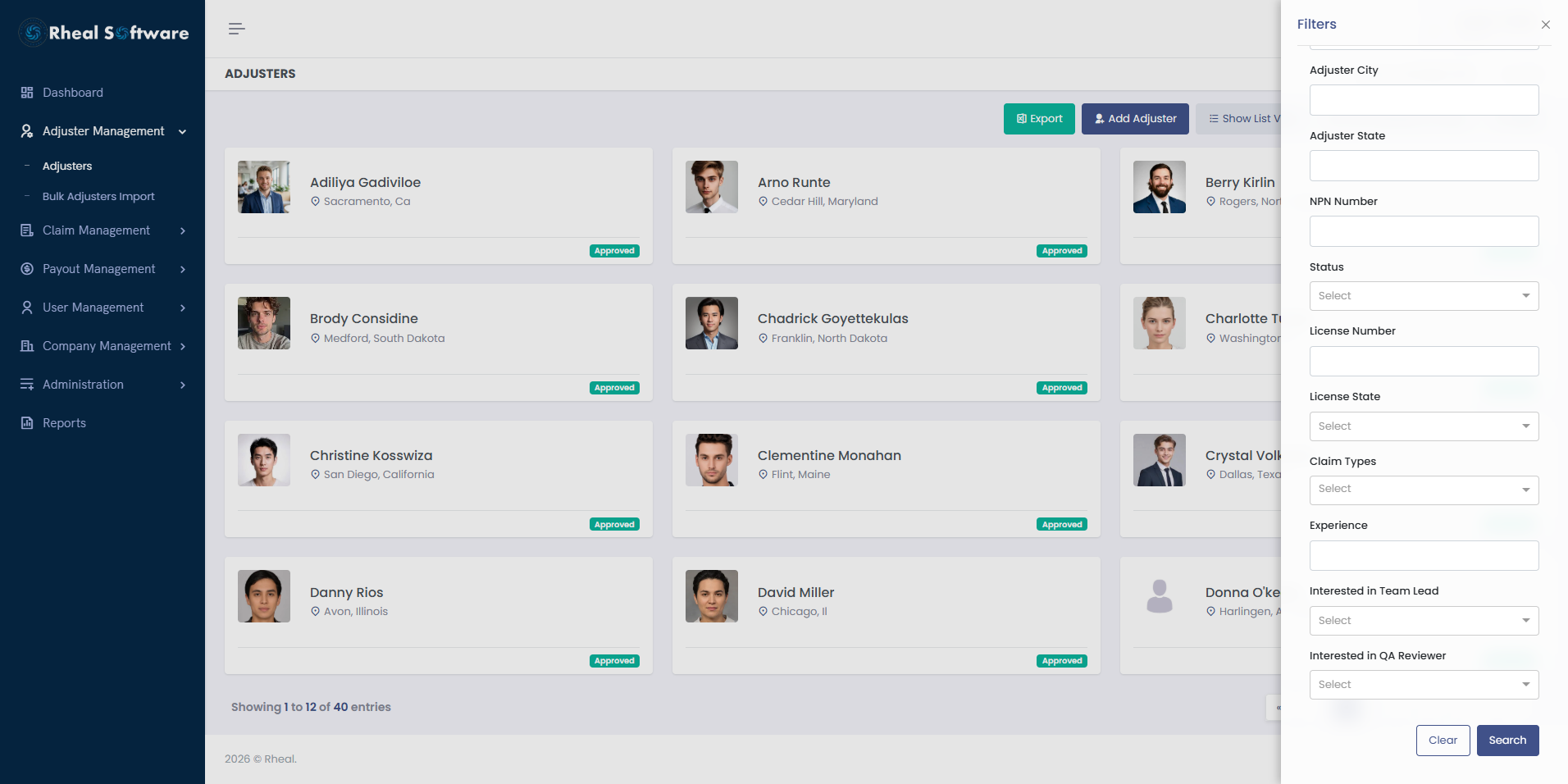
Adjuster List: The Adjuster List screen displays all adjusters registered in the system, along with their application status—Approved, Pending, or Rejected. Admins can review each application and take necessary actions such as approving, rejecting, or requesting more information. The screen also supports quick filtering and pagination for efficient navigation.

-
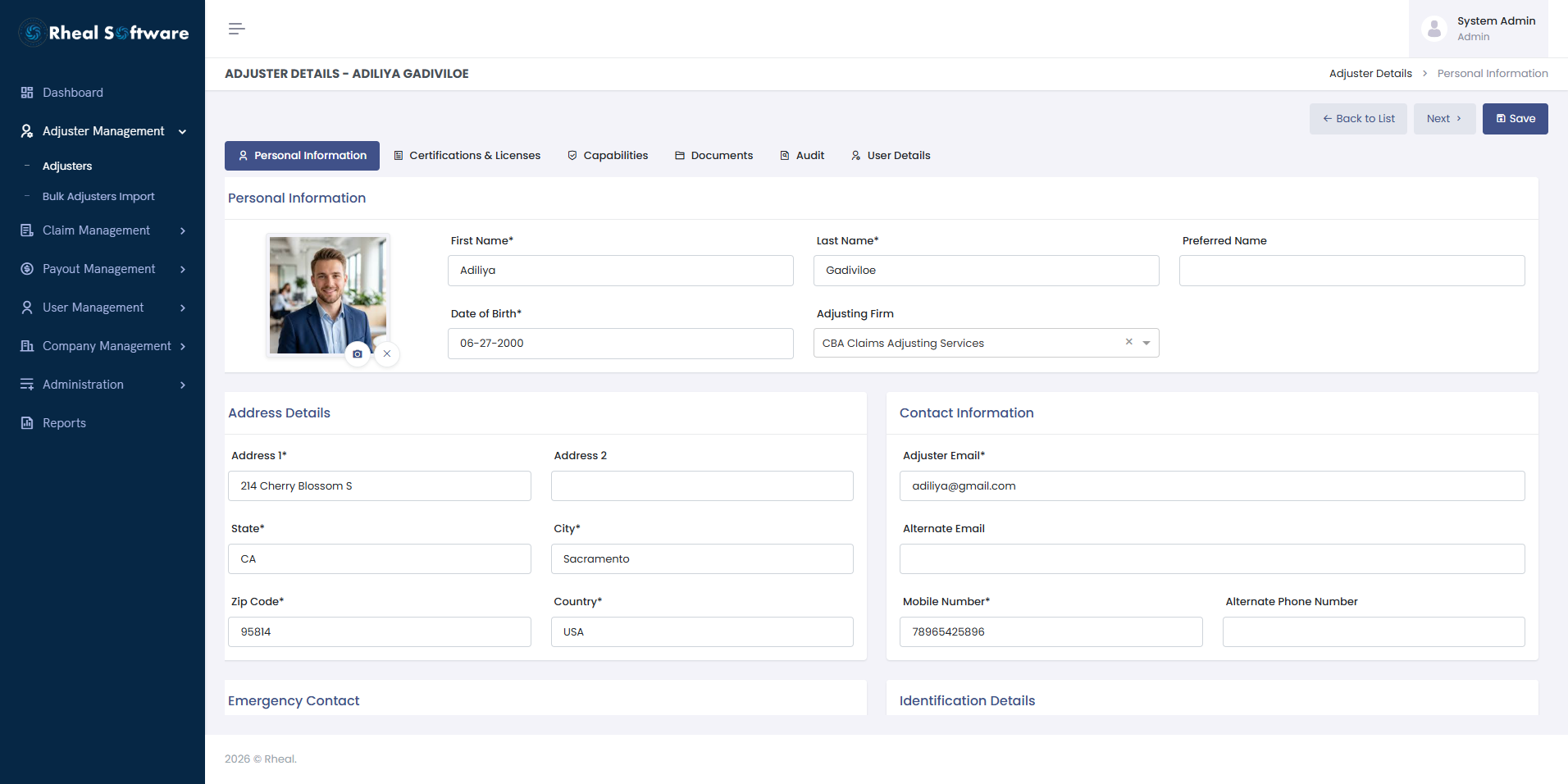
Adjuster Details - Personal Information: The Personal Information screen captures and displays comprehensive details about an adjuster, including their name, contact information, company details, address, and identification data. Admins can view and update this information as part of the onboarding or profile maintenance process. This screen ensures all essential personal and professional information is accurately stored and managed.
-
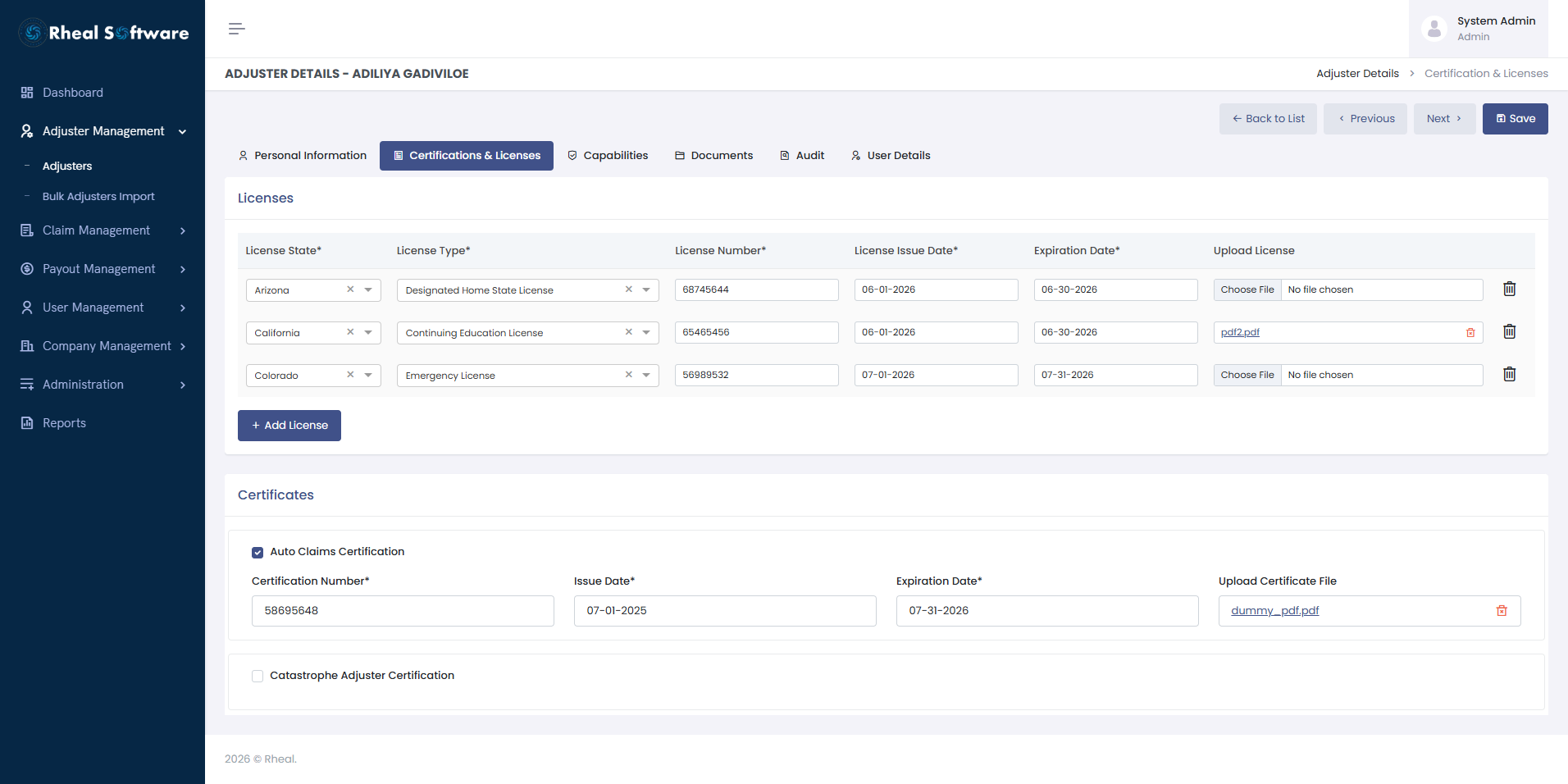
Adjuster Details - Certification & Licenses: This screen enables admins to manage an adjuster’s licenses and certifications. Users can add details like license type, state, issue/expiry dates, and upload related documents. It also allows selection and tracking of professional certificates required for claim assignments.
-
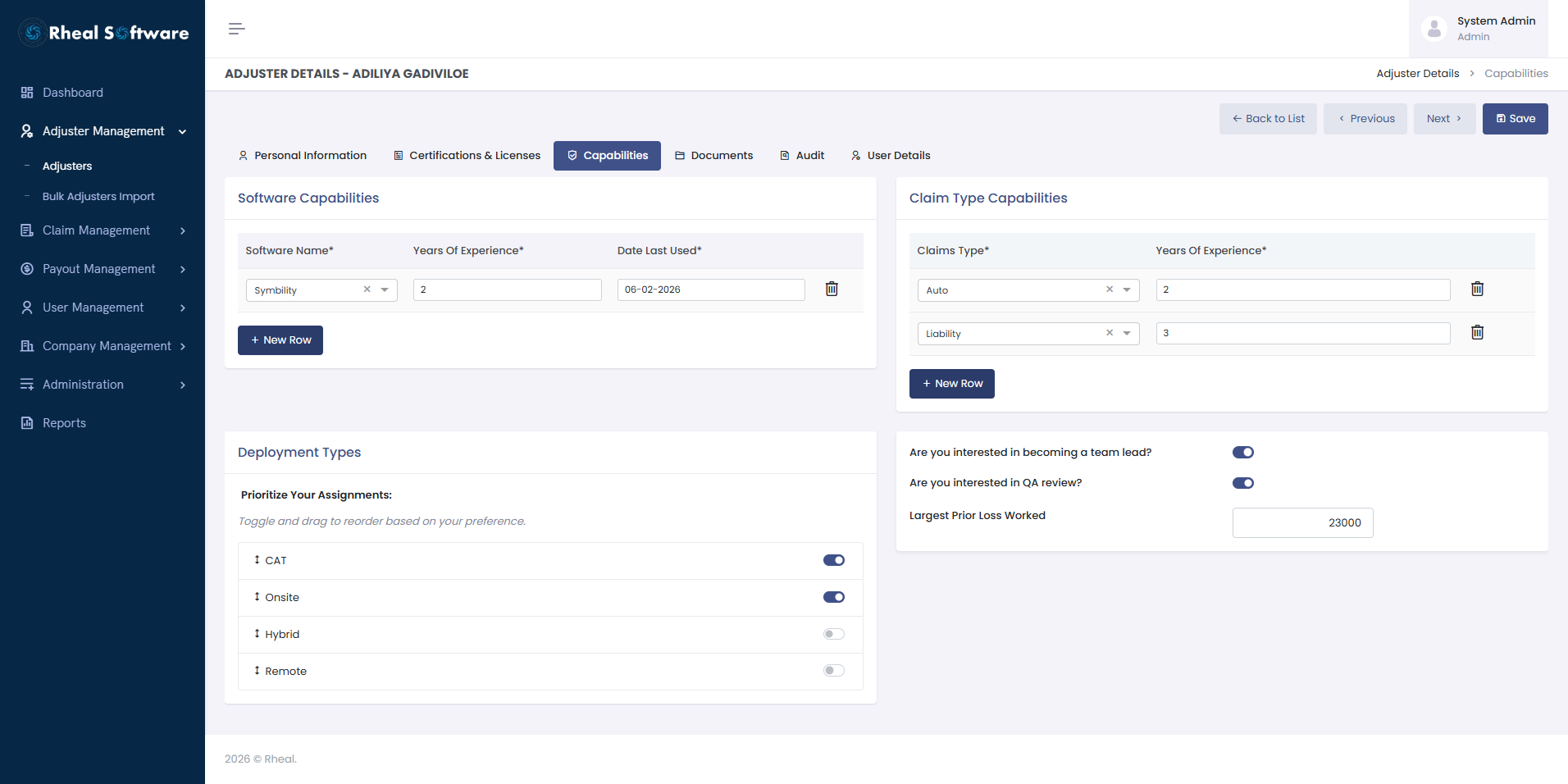
Adjuster Details – Capabilities: Specify software proficiencies (e.g., Xactimate, Symbility), Select supported claim types (auto, flood, property, etc.), Define availability and preferred geographic locations for deployment, Use these inputs to better match adjusters to incoming claims.
-
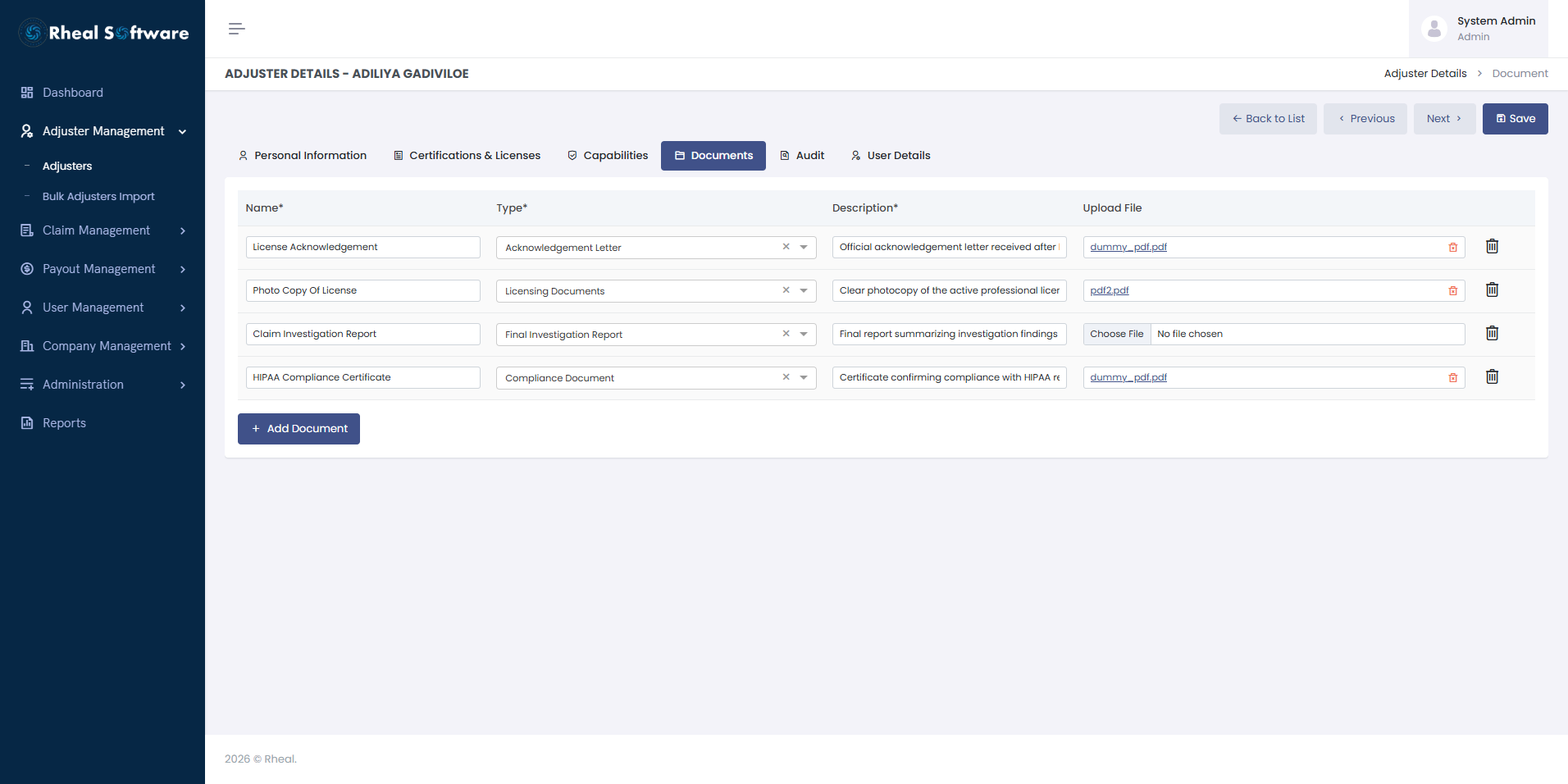
Adjuster Details – Documents: This screen allows users to upload and manage documents related to an adjuster's personal information. Users can enter document names and descriptions, select the document type, and upload corresponding files. Additional documents can be added using the "Add Document" button.
-
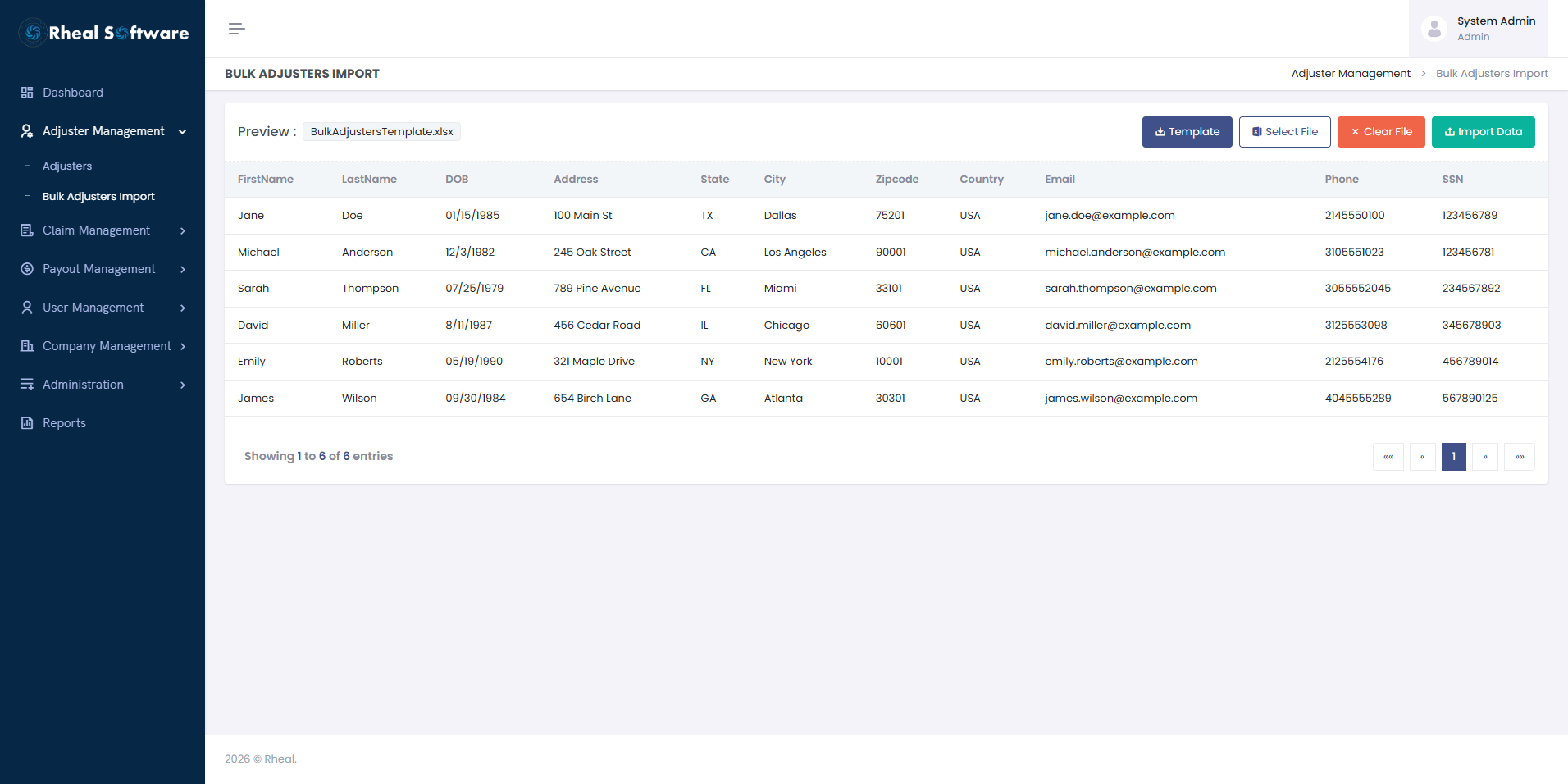
Adjuster Details – Adjuster Bulk Import: The Adjuster Bulk Import screen allows administrators to onboard multiple adjusters into the Claims Management System through a single Excel upload. Using a standardized import template, users can quickly upload, preview, and validate adjuster information before committing it to the system. The screen provides a clear, tabular preview of the uploaded data, enabling users to verify accuracy and completeness prior to import. This functionality significantly reduces manual data entry, improves data consistency, and accelerates adjuster onboarding, especially during large-scale implementations or high-volume scenarios.
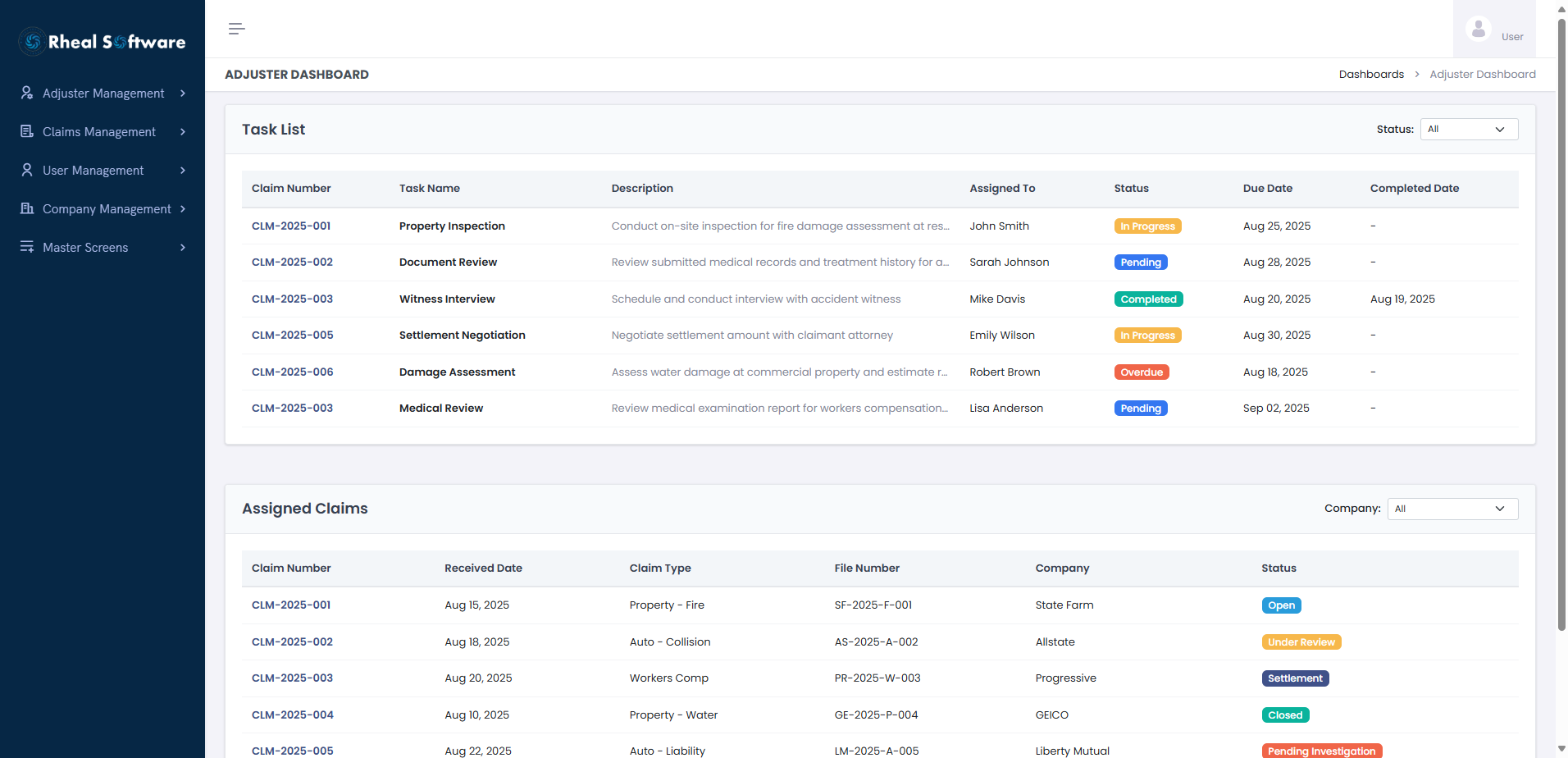
2. Adjuster Dashboard
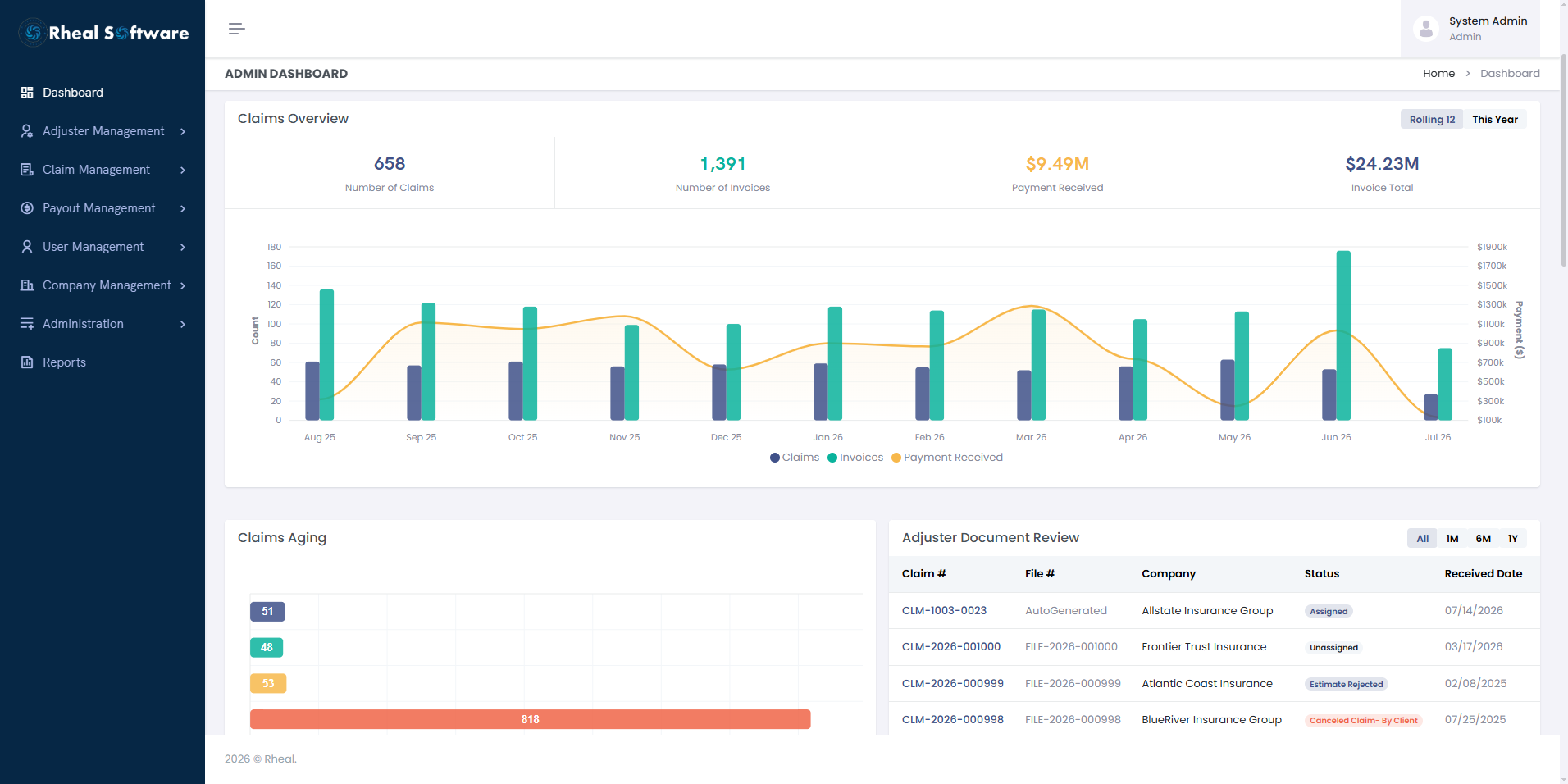
The Adjuster Dashboard provides a single view of all assigned tasks and claims, helping adjusters stay organized and efficient. It displays task details with color-coded statuses, due dates, and completion tracking for better prioritization. The claims section gives a quick overview of assigned claims, their types, and statuses, enabling faster decision-making and improved claim handling.
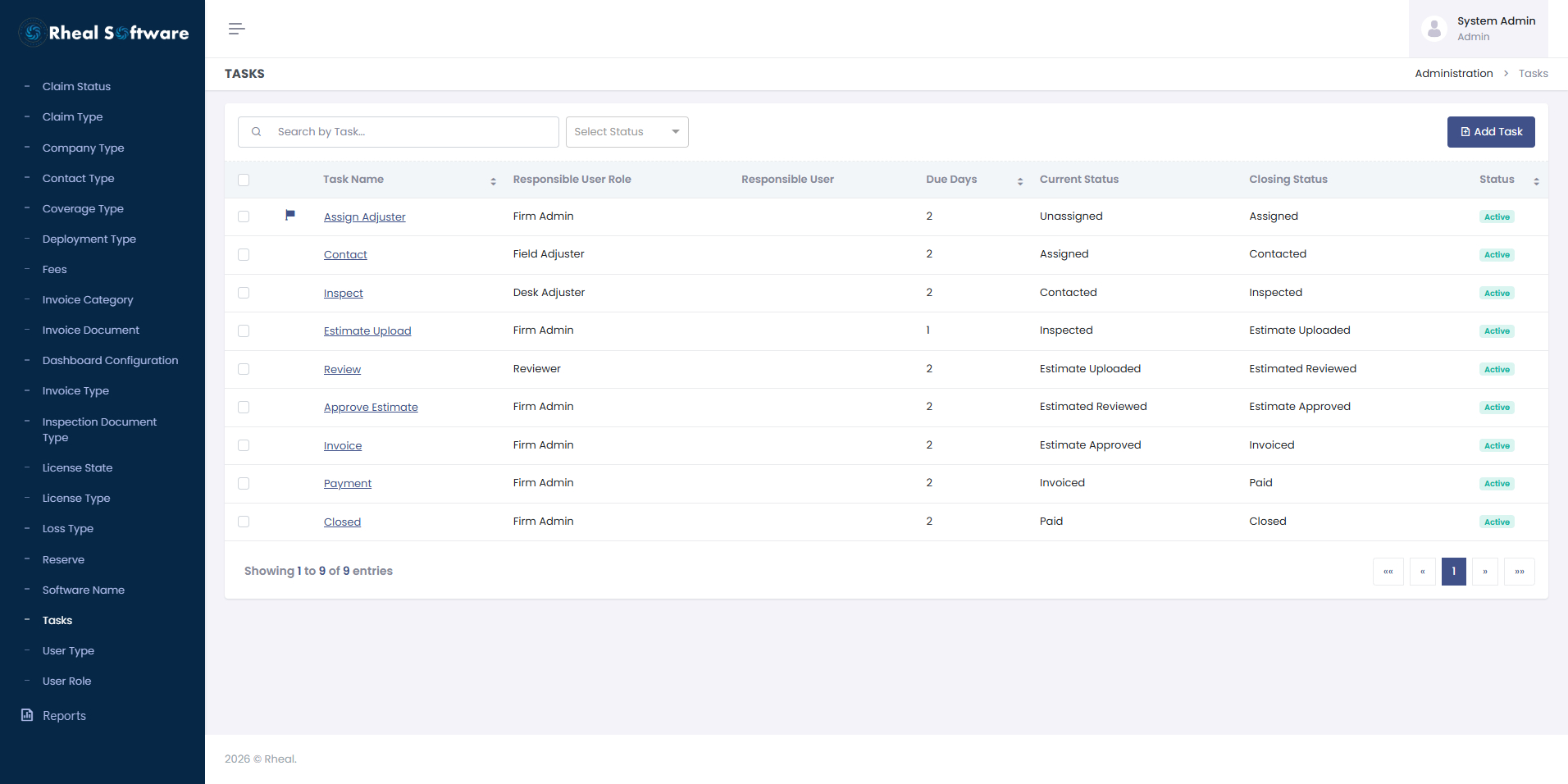
3. Default Claim Task Setup
The Default Claim Task Setup screen enables administrators to configure standardized workflows for claims processing. It defines task sequences, responsible user roles, due days, and closing statuses, ensuring consistency and compliance across all claims. This is a default Claim Task Setup and can be customized per Insurance Company.
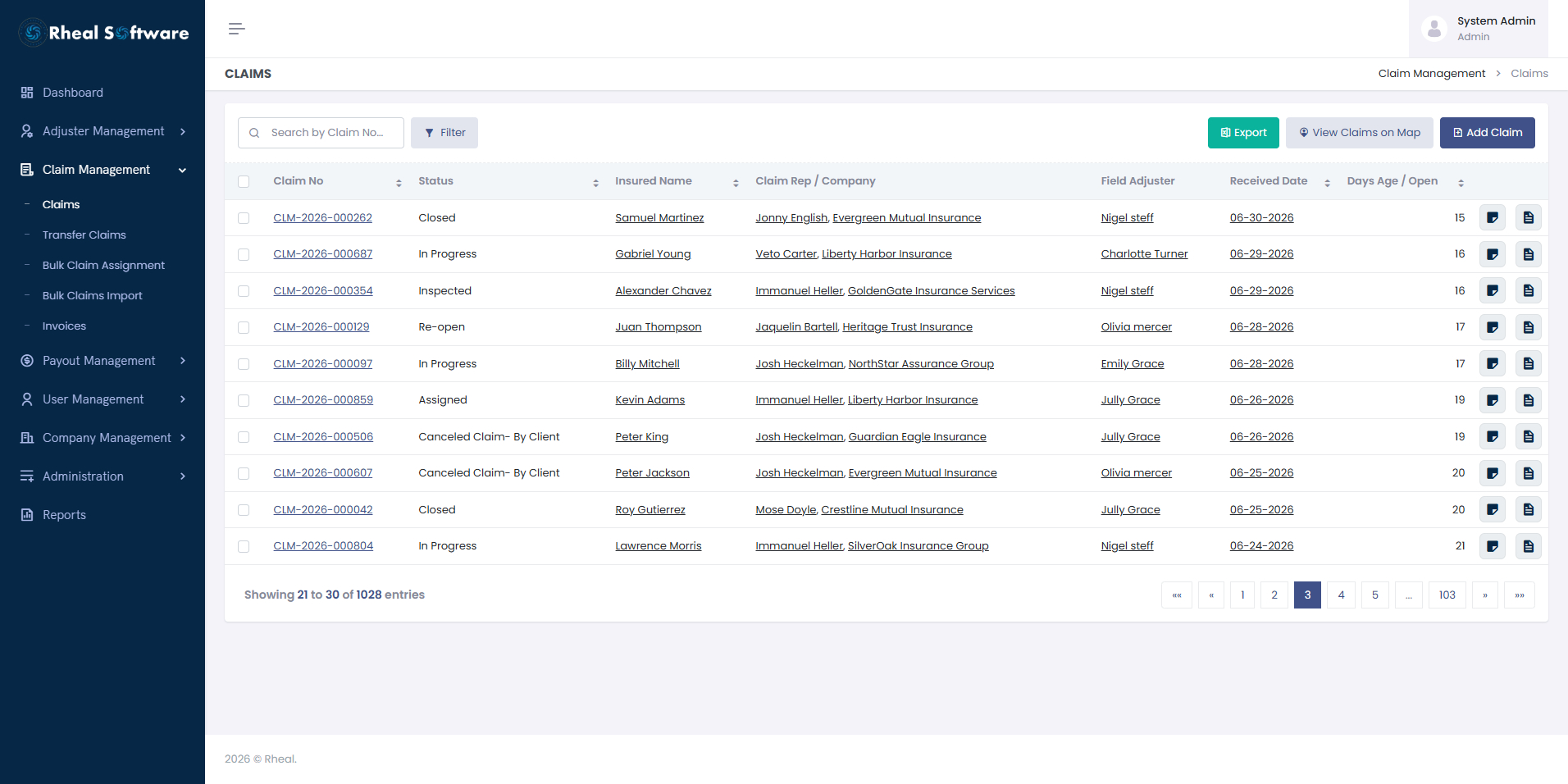
4. Claims List & Entry
This is where most of your team’s day-to-day activity happens. Users can view a comprehensive list of claims, search and filter based on various criteria, and drill down into individual claim records. Creating a new claim is straightforward — we’ve designed intuitive forms that reduce data entry errors and ensure consistency.
Watch the video demonstration to see the Claims functionality in action: Claims.mp4.
-
Claim List: This screen displays a list of insurance claims with key details such as claim number, status, insured name, loss type, dates, and location. Users can filter and search claims, view their age in days, and add new claims using the "Add Claim" button.
-
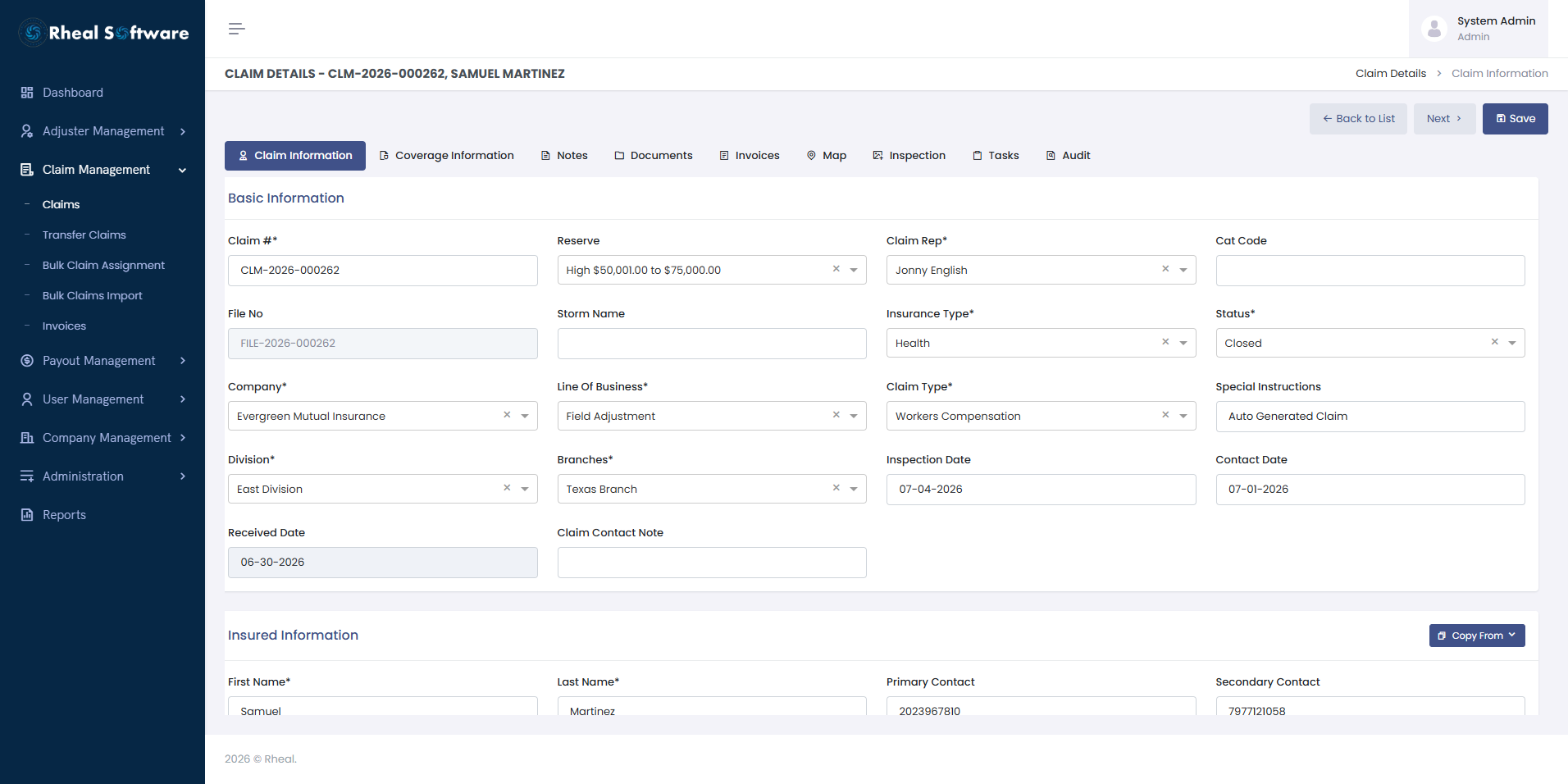
Claim Details - Claim Information: This screen provides detailed claim information, allowing users to view and edit key data related to a specific claim. It includes sections for basic claim details, insured and loss location information, policy and adjuster details, and claimant records. Users can navigate to additional tabs for coverage, notes, documents, and maps.
-
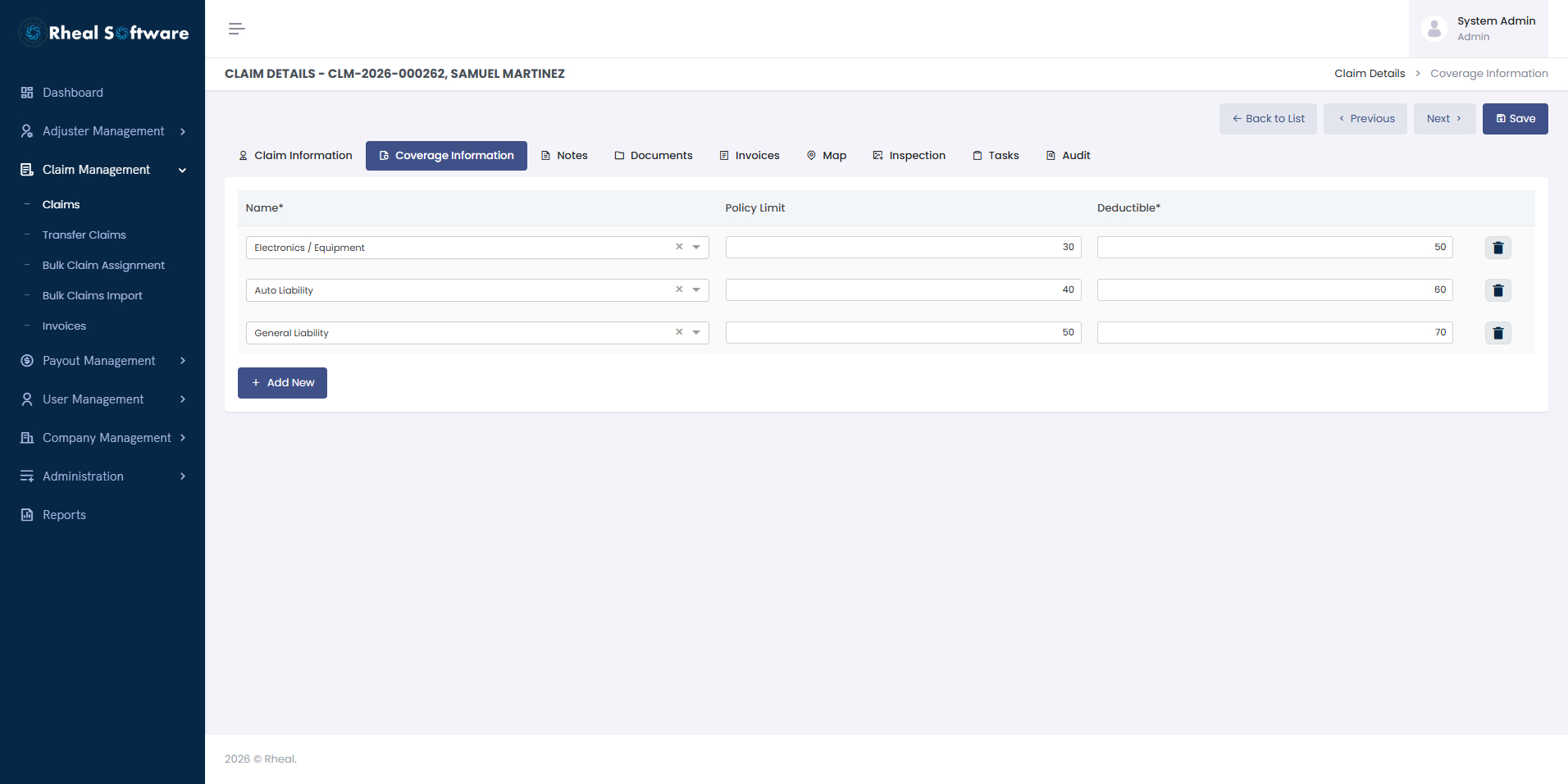
Claim Details - Coverage Information: This screen captures the coverage details for a claim, including coverage type, policy limits, deductibles, and applicable assets or entities. Users can add multiple coverage entries and specify how each applies, ensuring accurate representation of policy terms.
-
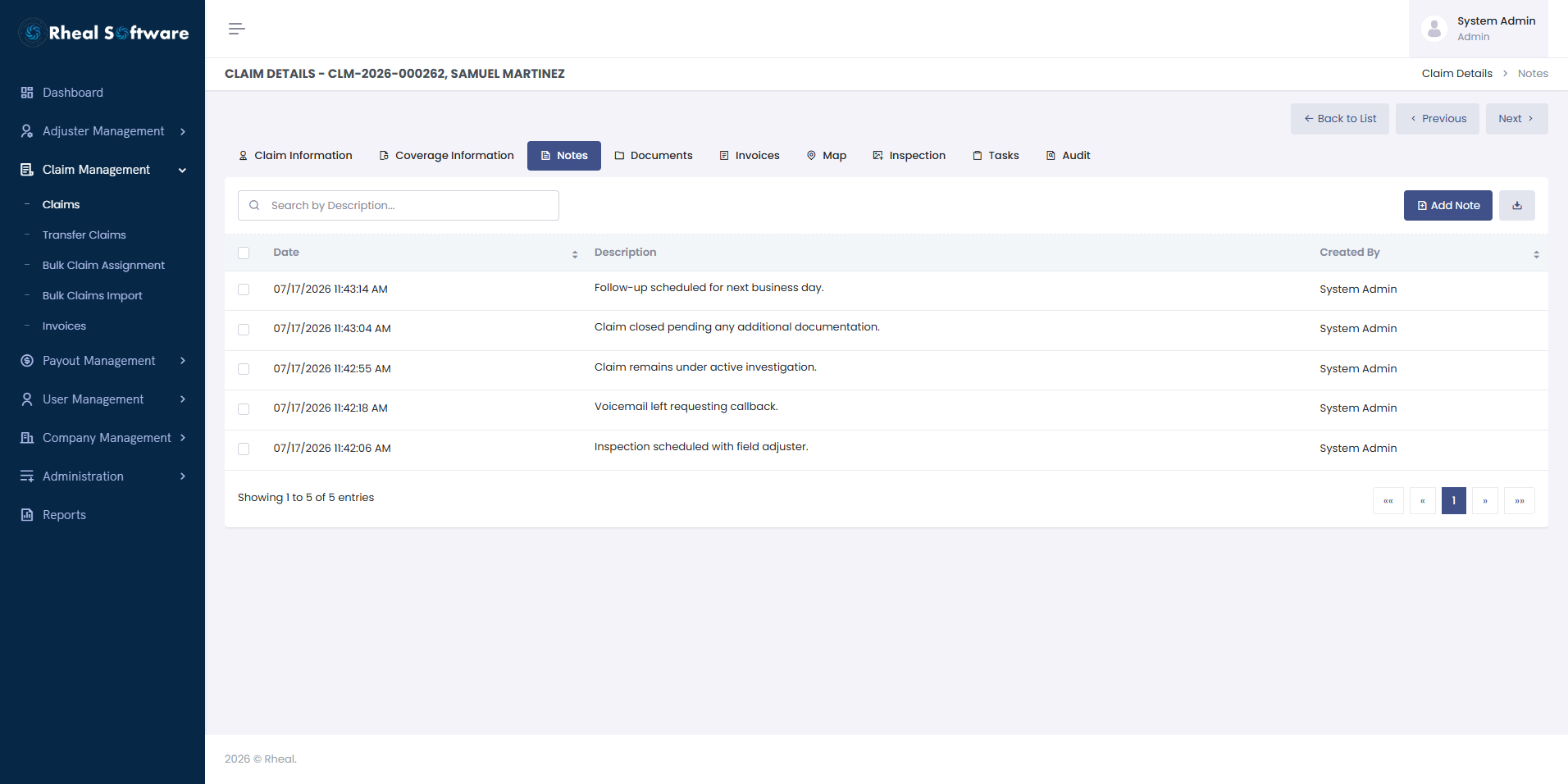
Claim Details – Notes: This screen allows users to view, add, and manage notes associated with a specific insurance claim. Each note includes a timestamp, title, and description for tracking claim activities and updates. Users can also edit or delete existing notes and download the list if needed.
-
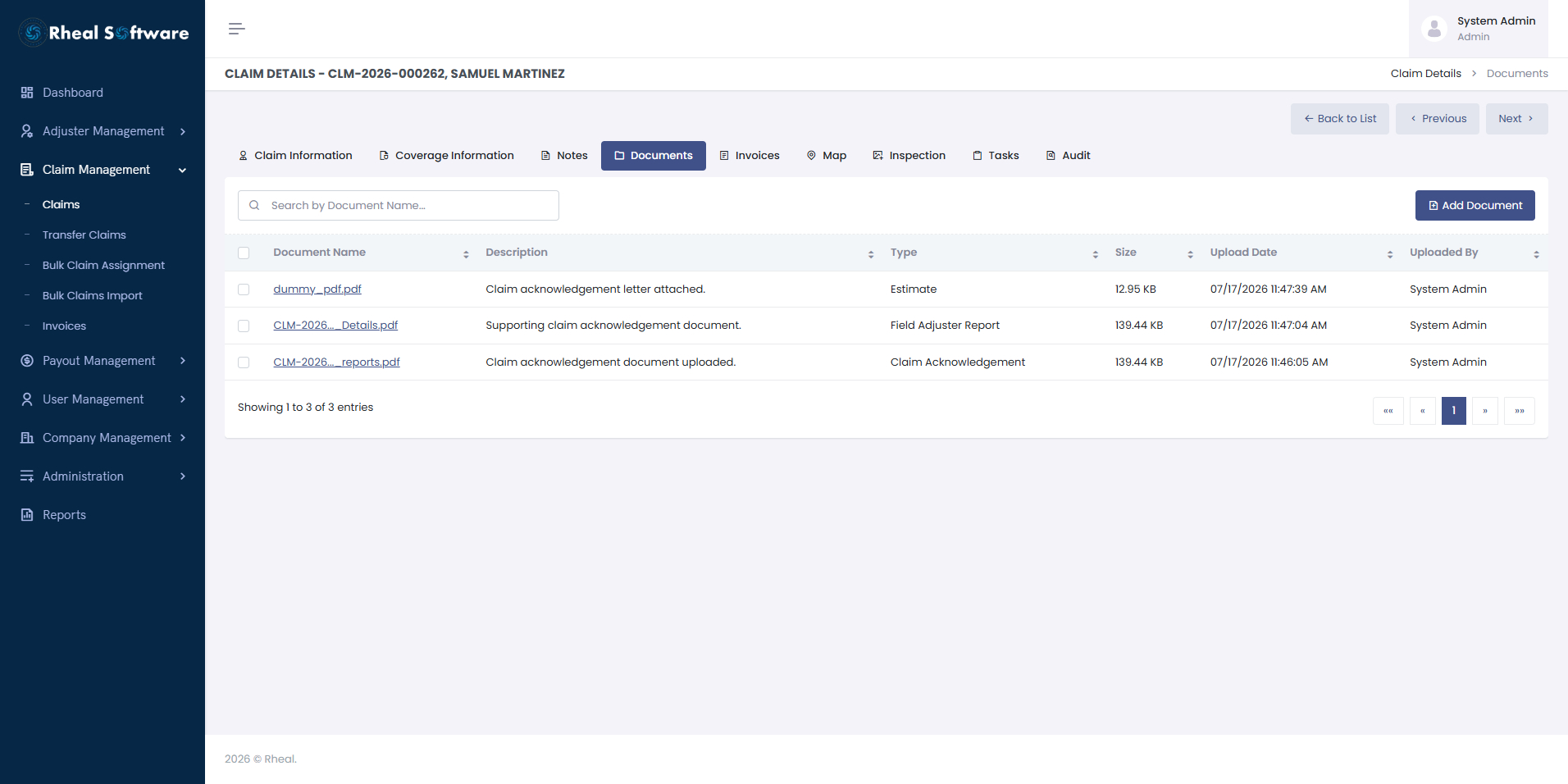
Claim Details – Documents: This screen displays all documents associated with a specific insurance claim. Users can view document names, descriptions, sizes, upload dates, and the uploader's identity. The “Add Document” button allows uploading new files, while existing ones can be selected for deletion or further actions.
-
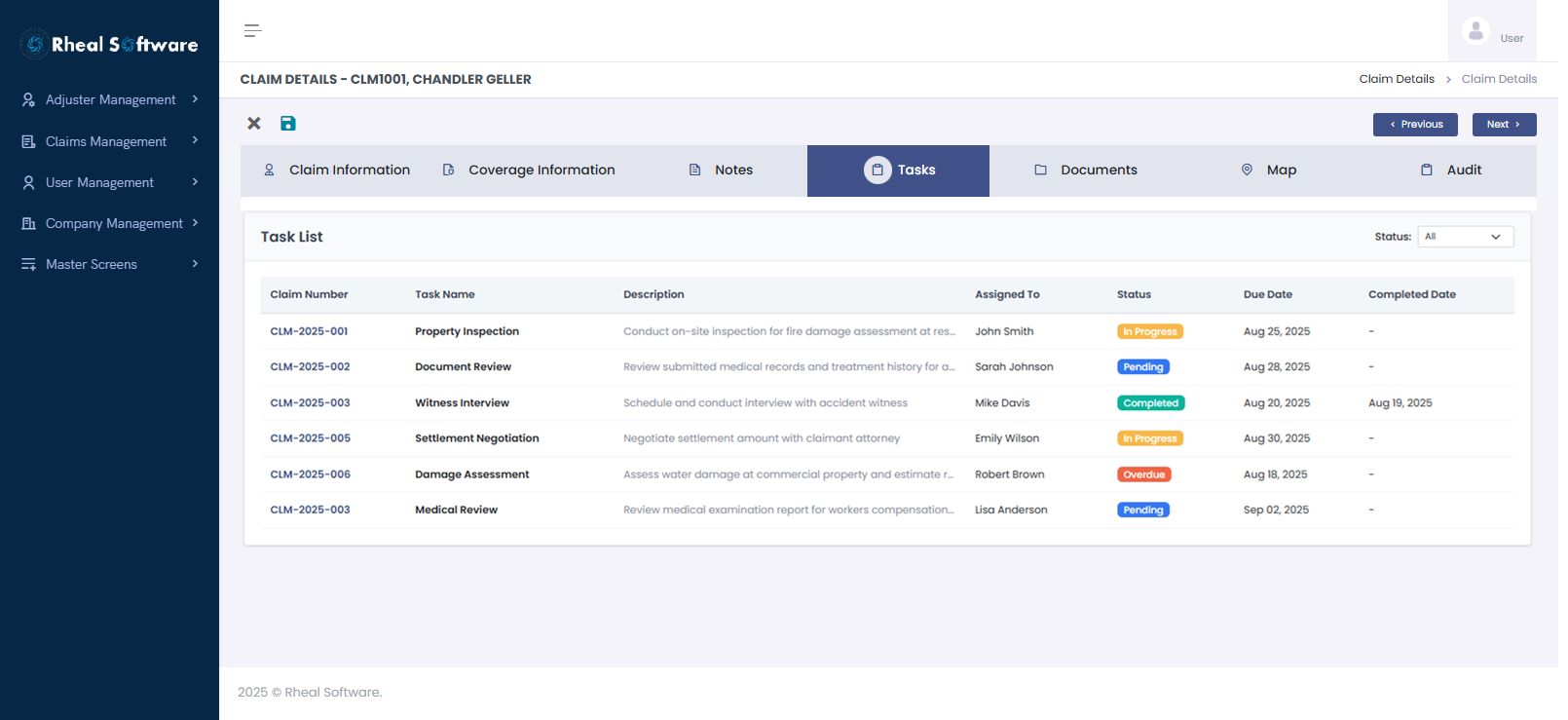
Claim Details – Tasks: This screen provides a comprehensive view of all activities associated with a claim, displaying key information such as task name, description, assigned personnel, status, and relevant dates.
-
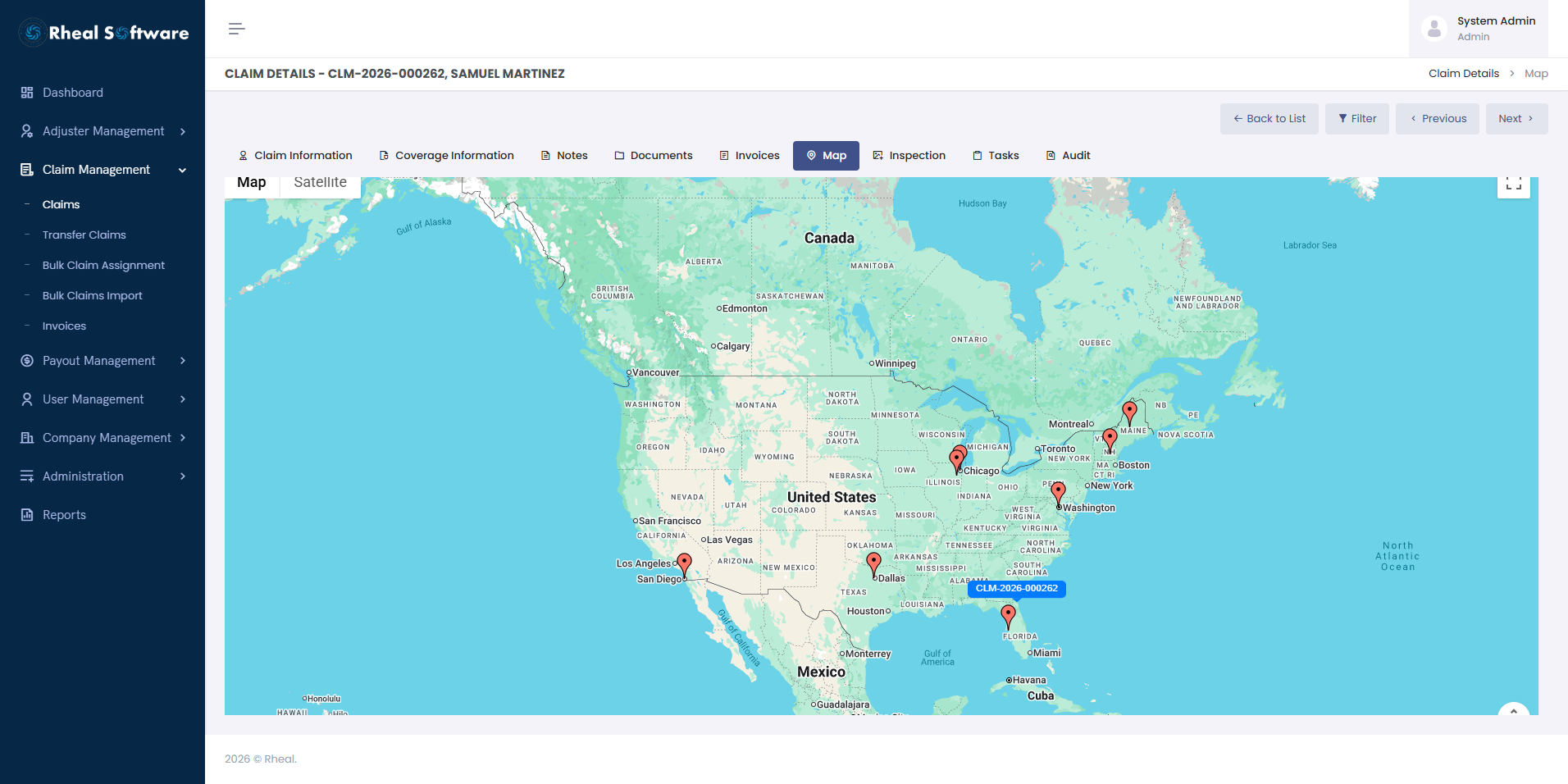
Claim Details – Map Assignment: The Adjuster Map Assignment screen allows administrators to visually locate and assign adjusters to claims based on geography. By selecting a claim on the map, users can view nearby adjusters with details such as contact information, ranking, and proficiency. This feature ensures faster, more efficient claim assignments by matching the right adjuster to the right location, improving response times and operational efficiency.
-
Claim Details - Claim Inspection:
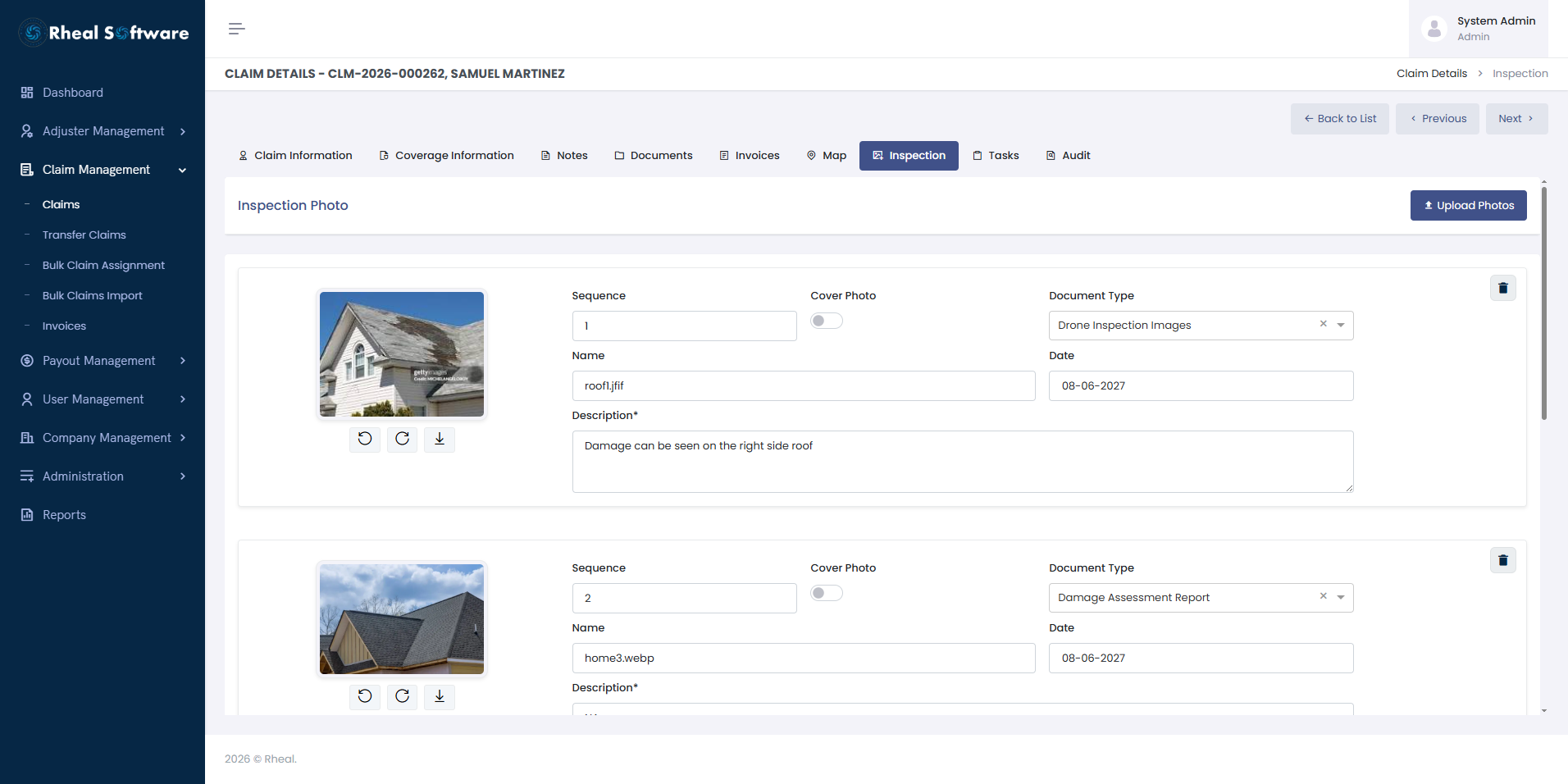
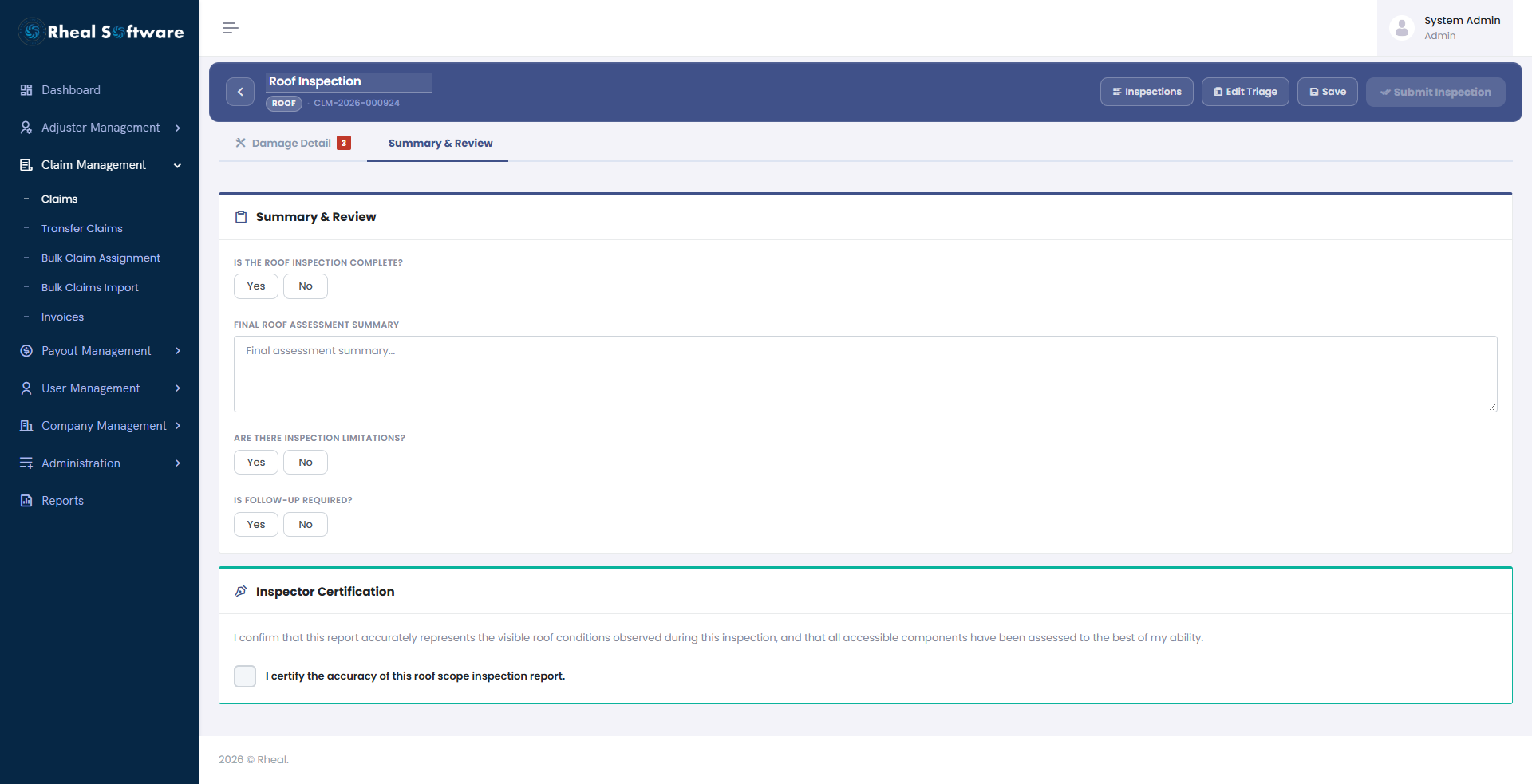
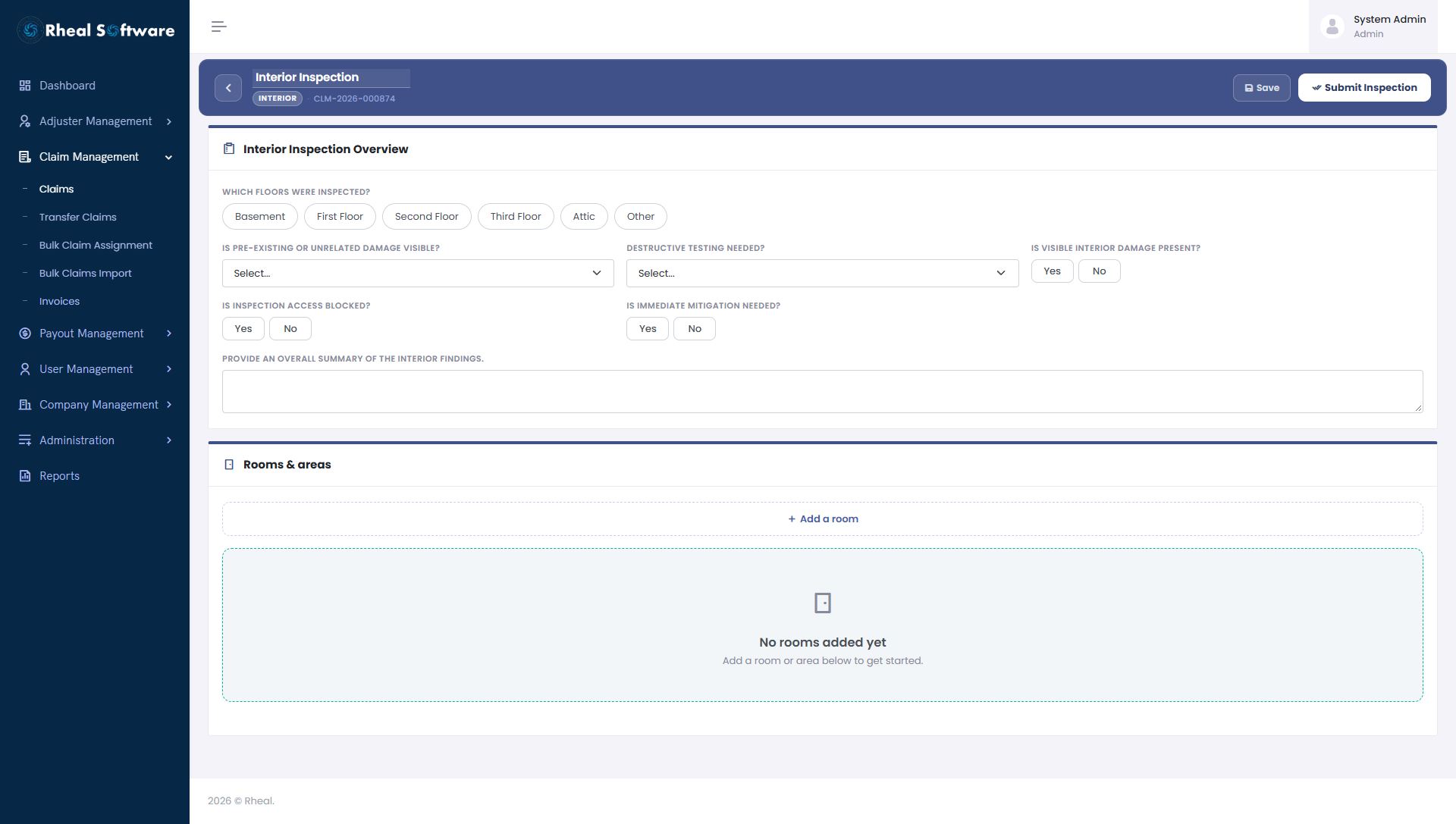
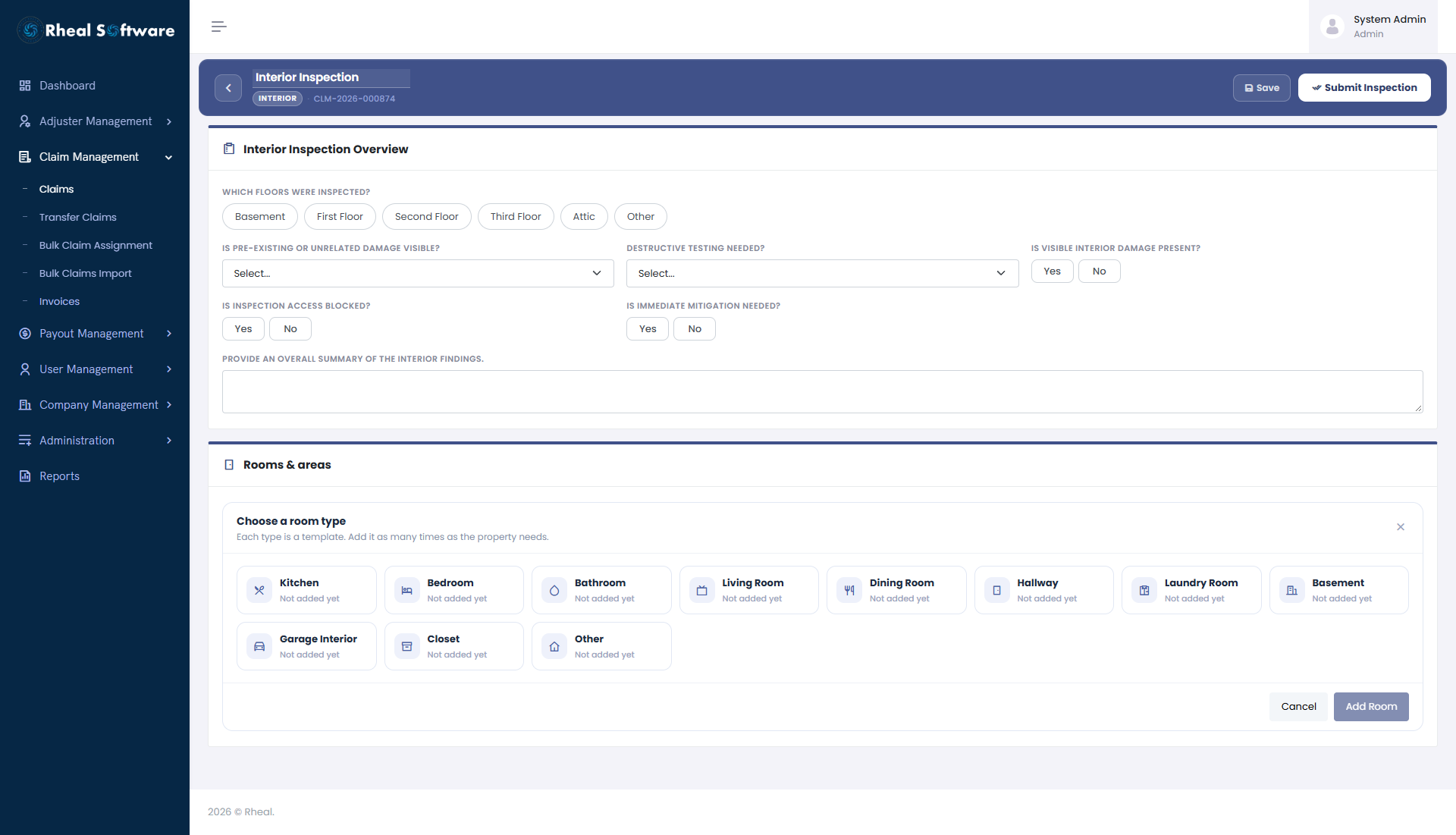
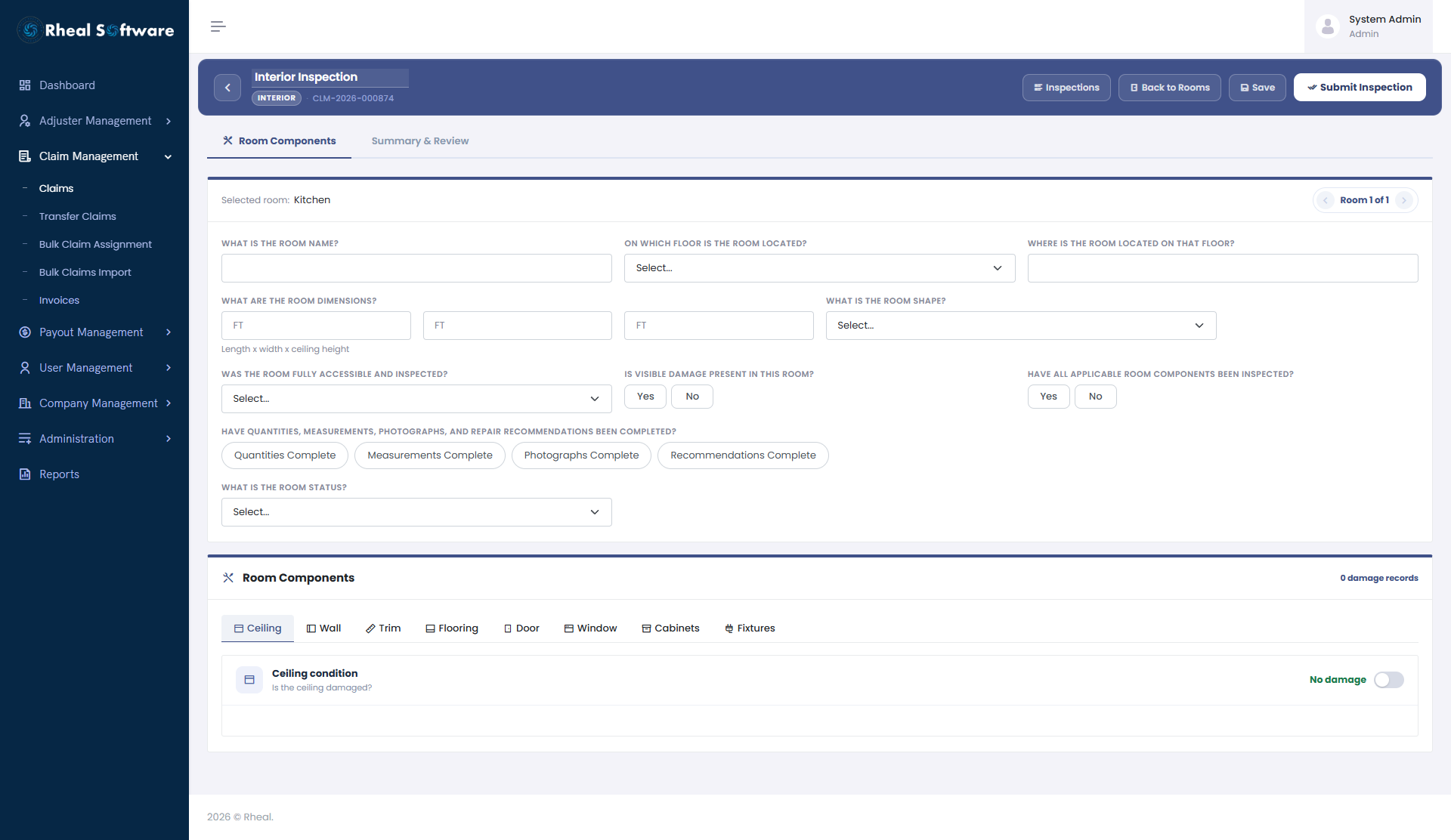
The Claim Inspection screen provides adjusters and claims teams with a centralized, visual workspace to document and manage inspection evidence directly within the claim lifecycle. From this module, users can upload, organize, and annotate inspection photos, ensuring that all visual documentation is accurately captured and associated with the claim. Each inspection image can be categorized, sequenced, dated, and marked as a cover photo, enabling clear presentation and easy reference during claim review and reporting. This feature enhances transparency, supports faster claim assessments, and ensures inspection data is consistently documented to support decision-making, compliance, and downstream workflows such as estimating, approvals, and audits. The application can manage the following inspection types:
- Roof Inspection
- Interior Inspection
- Exterior Inspection
- Detached Structure Inspection
-
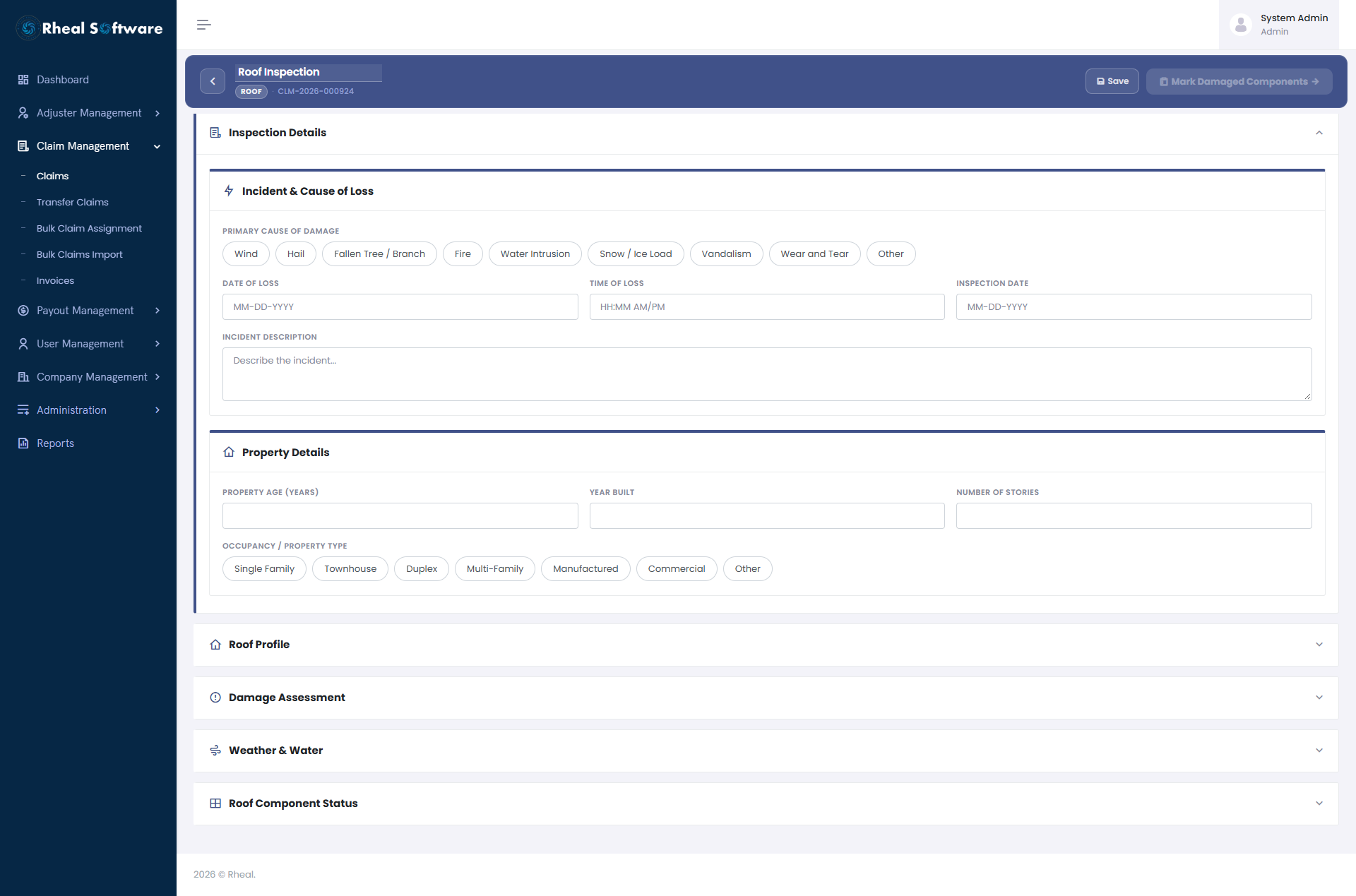
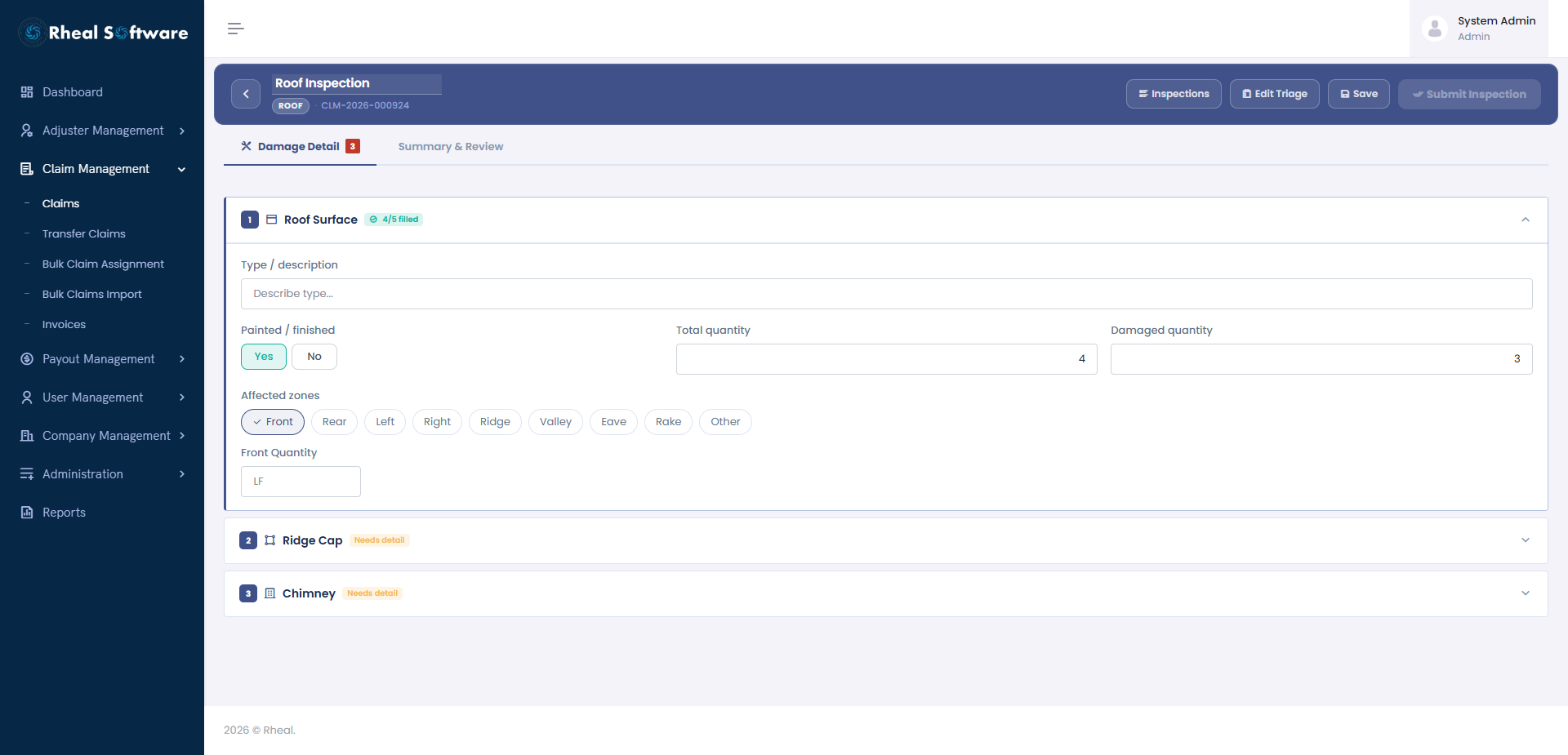
Roof Inspection: After a storm or other damage, the roof is usually where a claim starts. The adjuster does not write a free-form report. They follow a guided form that asks the same questions in the same order every time. First, what happened and when. Then what the roof is made of and what condition it was in before. Then where it is damaged, how badly, and whether wind, hail or water caused it. At the end, the adjuster writes a short summary and certifies that the report is accurate, and it goes to the office for review.
-
Interior Inspection: Inside the building, every room is its own record. The adjuster picks the room type, such as kitchen, bedroom or bathroom, and adds as many rooms as the property has. Each room is checked part by part: ceiling, walls, flooring, doors, windows and cabinets. Damage is noted exactly where it is found, so the claim file shows which room had which problem. This is useful for water and fire claims, where the damage is often in several rooms.
-
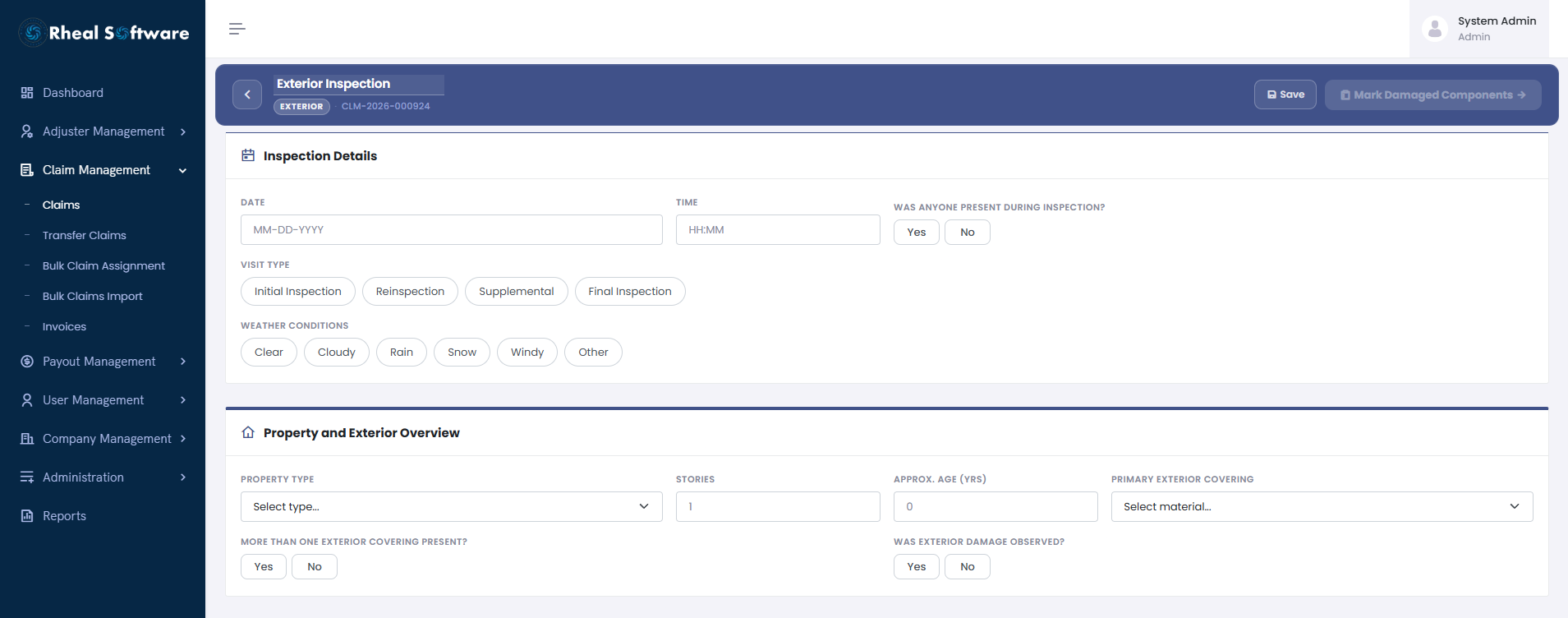
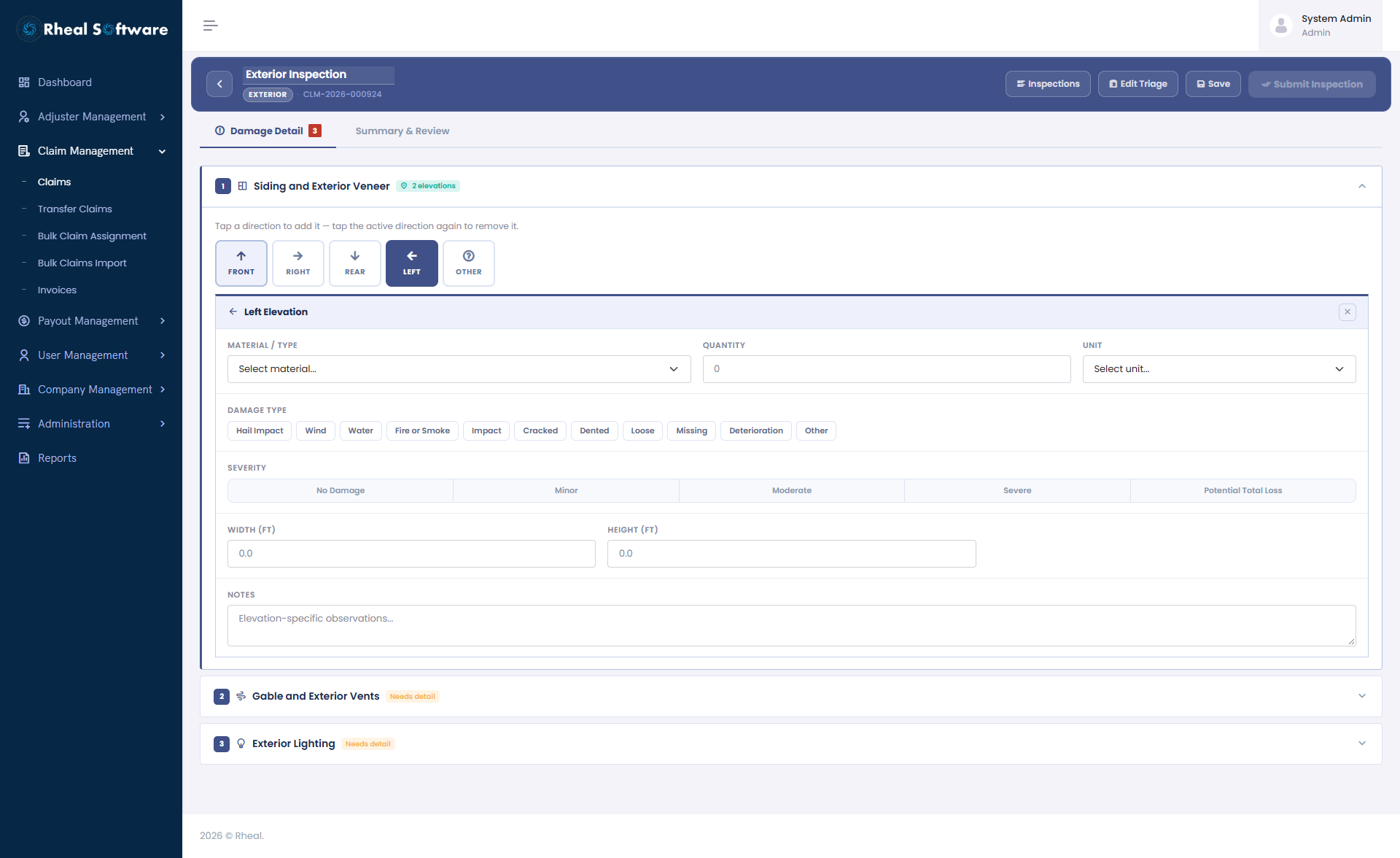
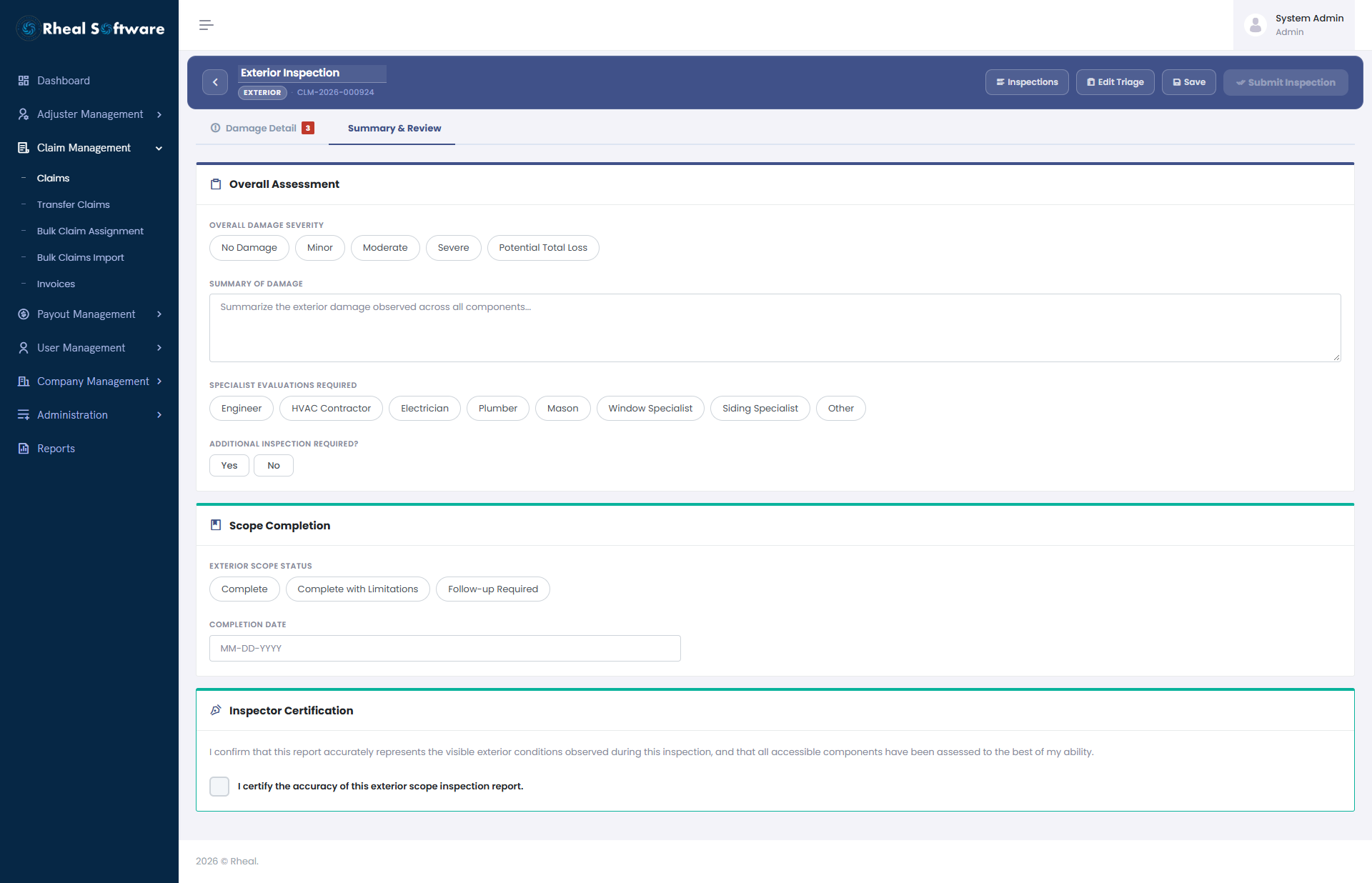
Exterior Inspection: The outside of a building is checked one side at a time: front, right, rear and left. This stops the adjuster from missing a side. For each part on each side, such as siding, windows, doors and gutters, they mark whether it is fine or damaged. If it is damaged, they record what kind of damage it is (for example hail, wind or water) and how serious. If a specialist is needed, such as an engineer, the adjuster notes it in the same form. The inspection ends by stating whether the work is complete, complete with limits, or needs a follow-up.
-
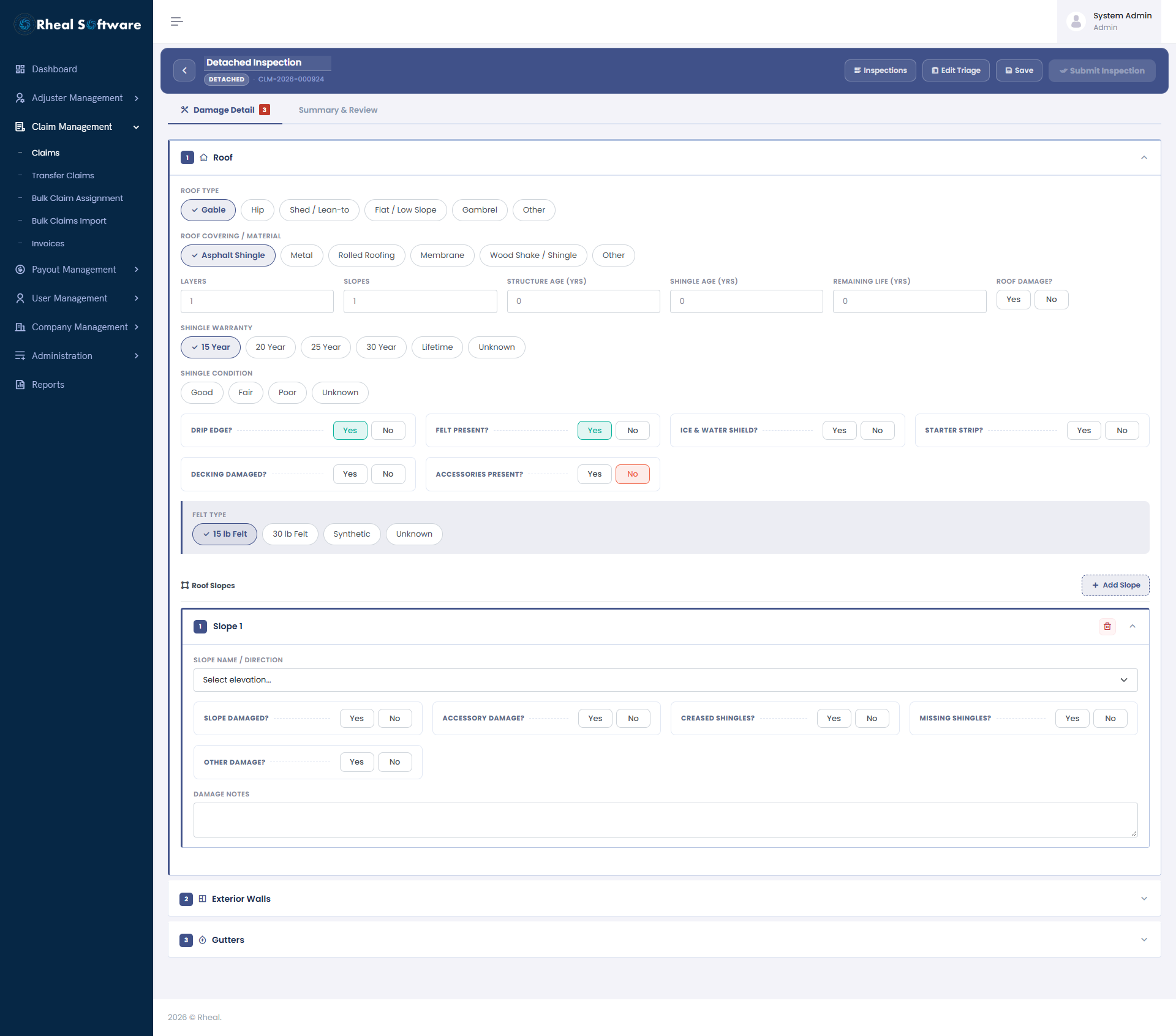
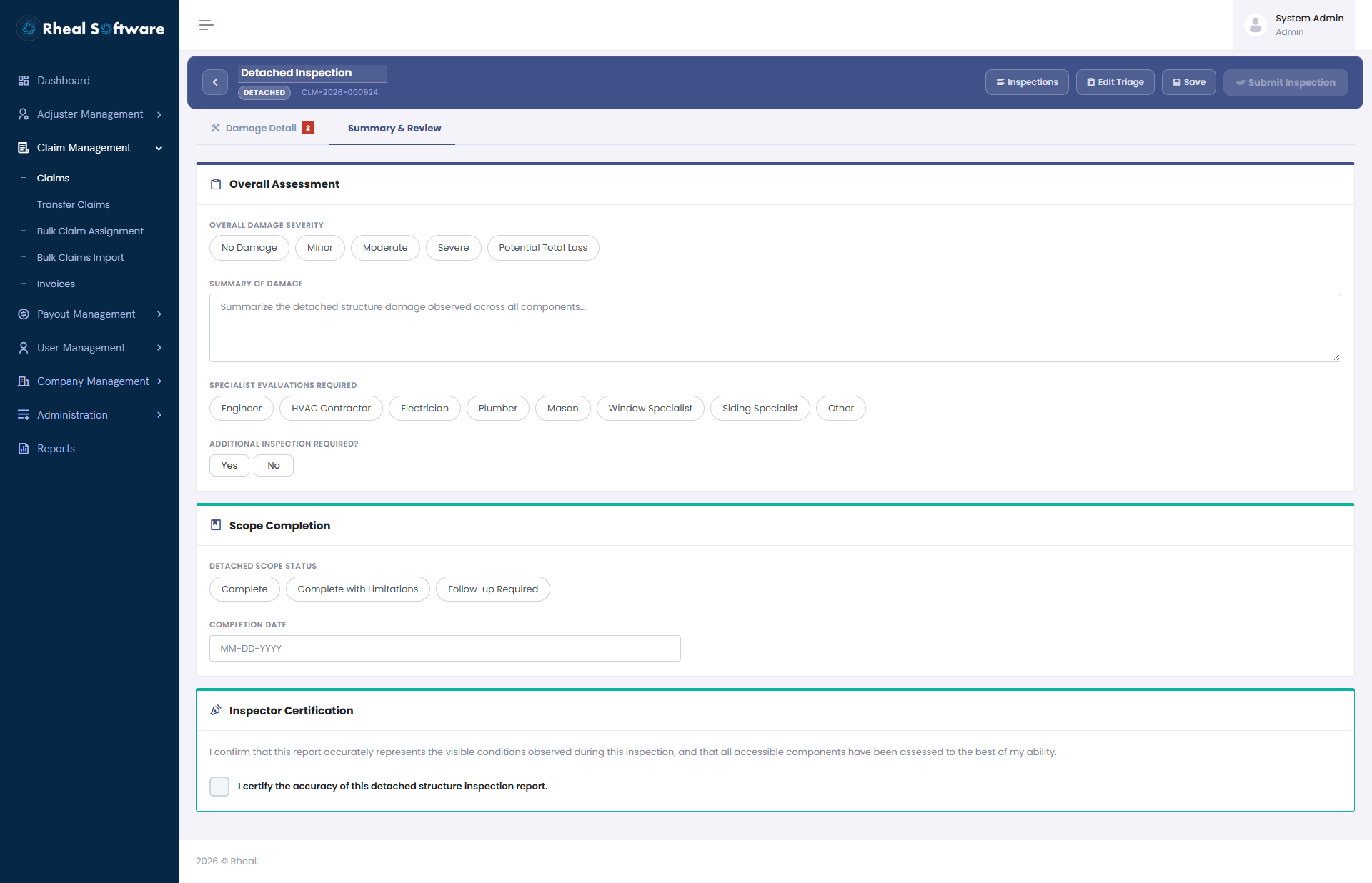
Detached Structure Inspection: Many properties have more than the main building: a garage, a shed or a fence. These used to get a few lines in the main report. Now each structure has its own inspection. The form changes to fit what is being inspected. A fence asks about posts and gates. A building asks about its roof, walls and rooms. Every structure ends with its own summary, the specialists needed, and a sign-off, so one damaged shed does not get lost inside a long report.
- Inspection Report: When the field work is done, the office does not have to collect anything by hand. One click on Generate Scope Report builds a single PDF for the whole claim. It starts with the claim facts: claim number, policy, the insured, the inspector, the loss date and the loss address. Then it includes every inspection done on the claim (roof, exterior, interior, detached structures), with the answers laid out under clear headings. It also adds all the photos and the documents uploaded to the claim inspection, and the full pages of any PDFs are attached at the end. The result is one report that can go to the carrier, instead of separate notes, forms and files.
-
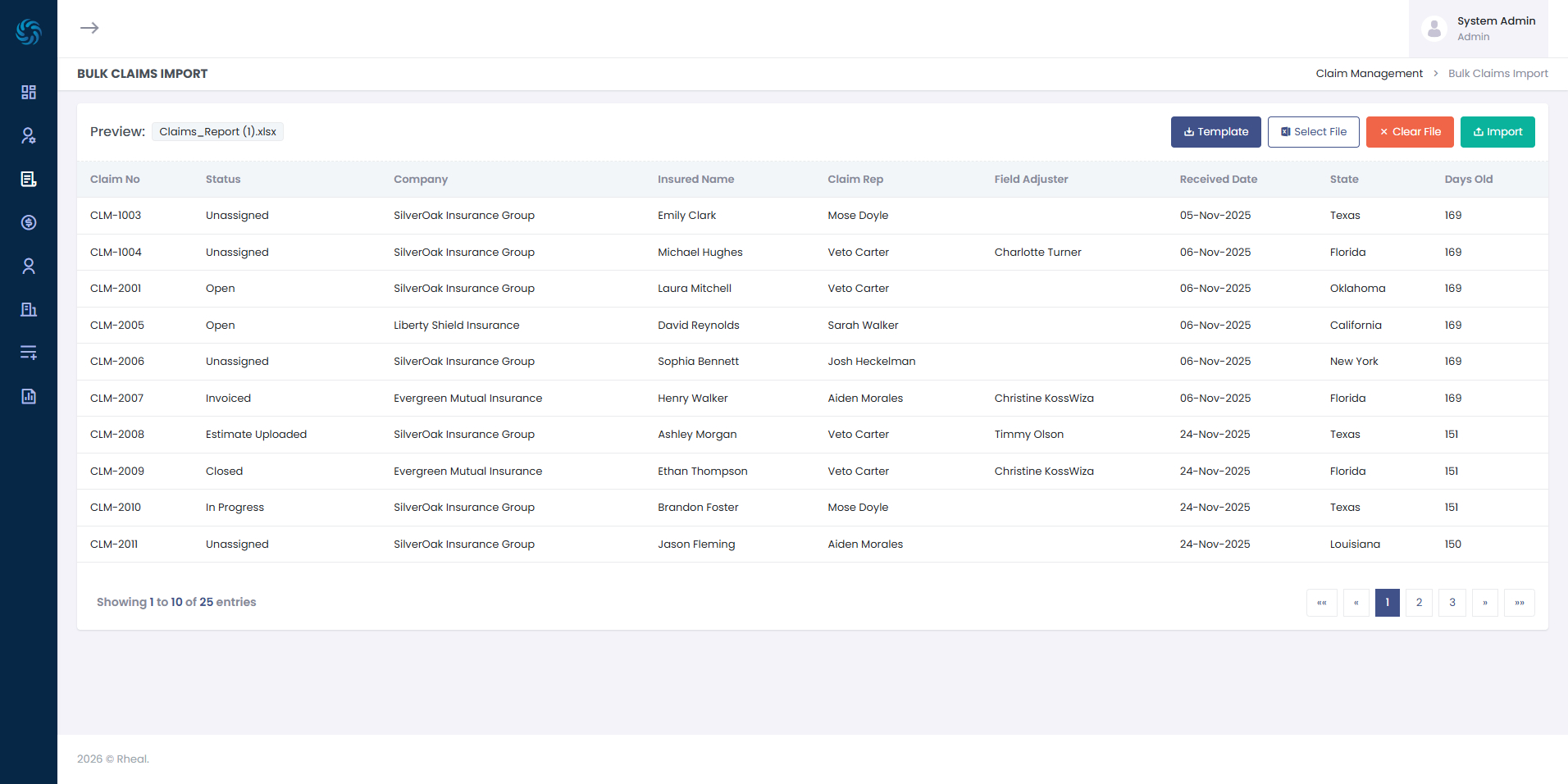
Claim Details - Claim Bulk Import: The Bulk Claims Import feature empowers claims teams to rapidly onboard large volumes of claims with minimal effort. By leveraging a standardized Excel-based import template, users can upload, review, and validate claim data in a single, streamlined workflow. The intuitive preview screen provides full visibility into critical claim information—such as claim details, policy and insurance types, claimant information, loss locations, and organizational assignment—before final submission. This capability enables organizations to significantly reduce manual processing time, improve data accuracy, and efficiently scale operations during high-volume scenarios such as catastrophe events, portfolio migrations, or new client onboarding.
-
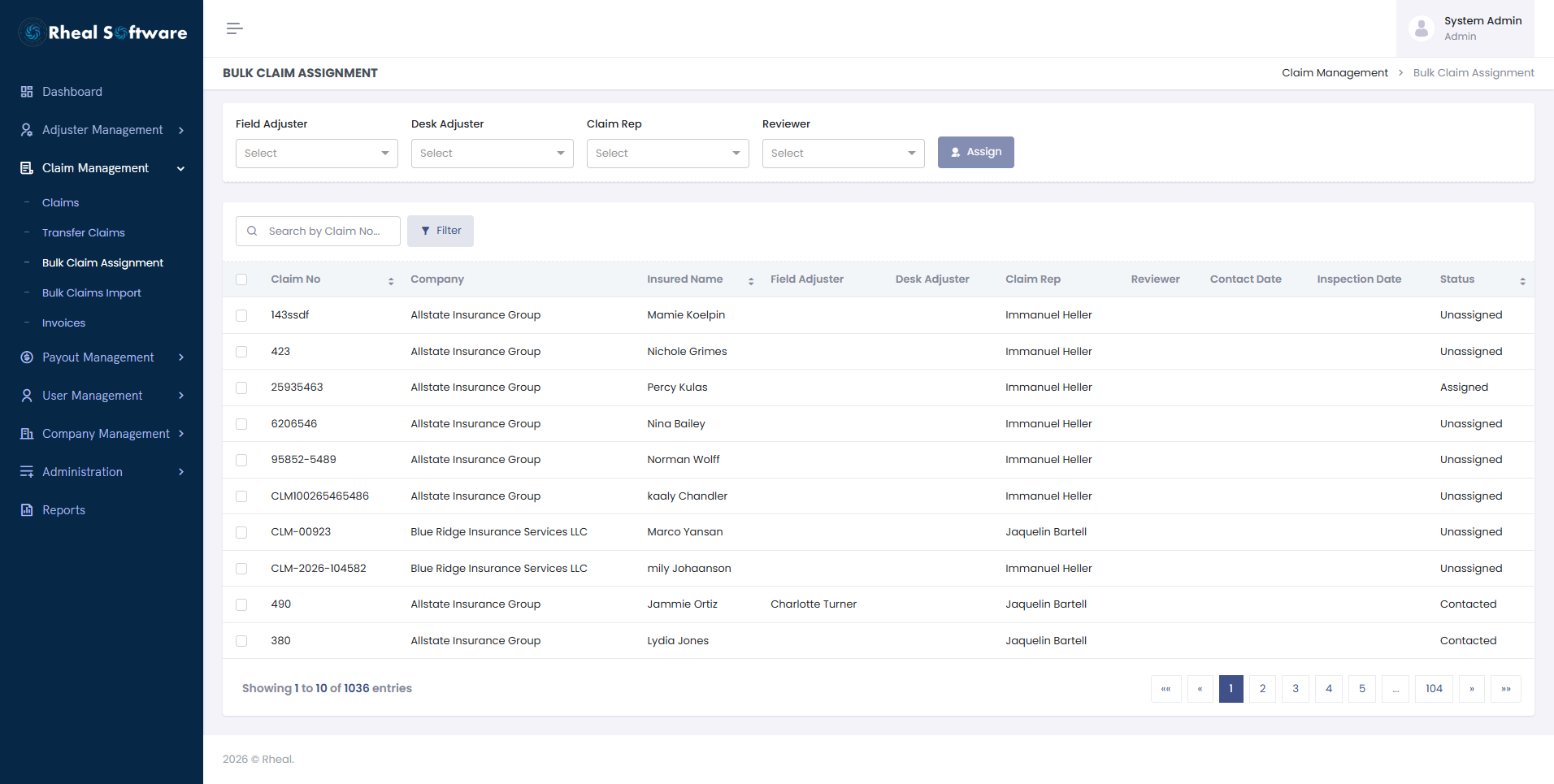
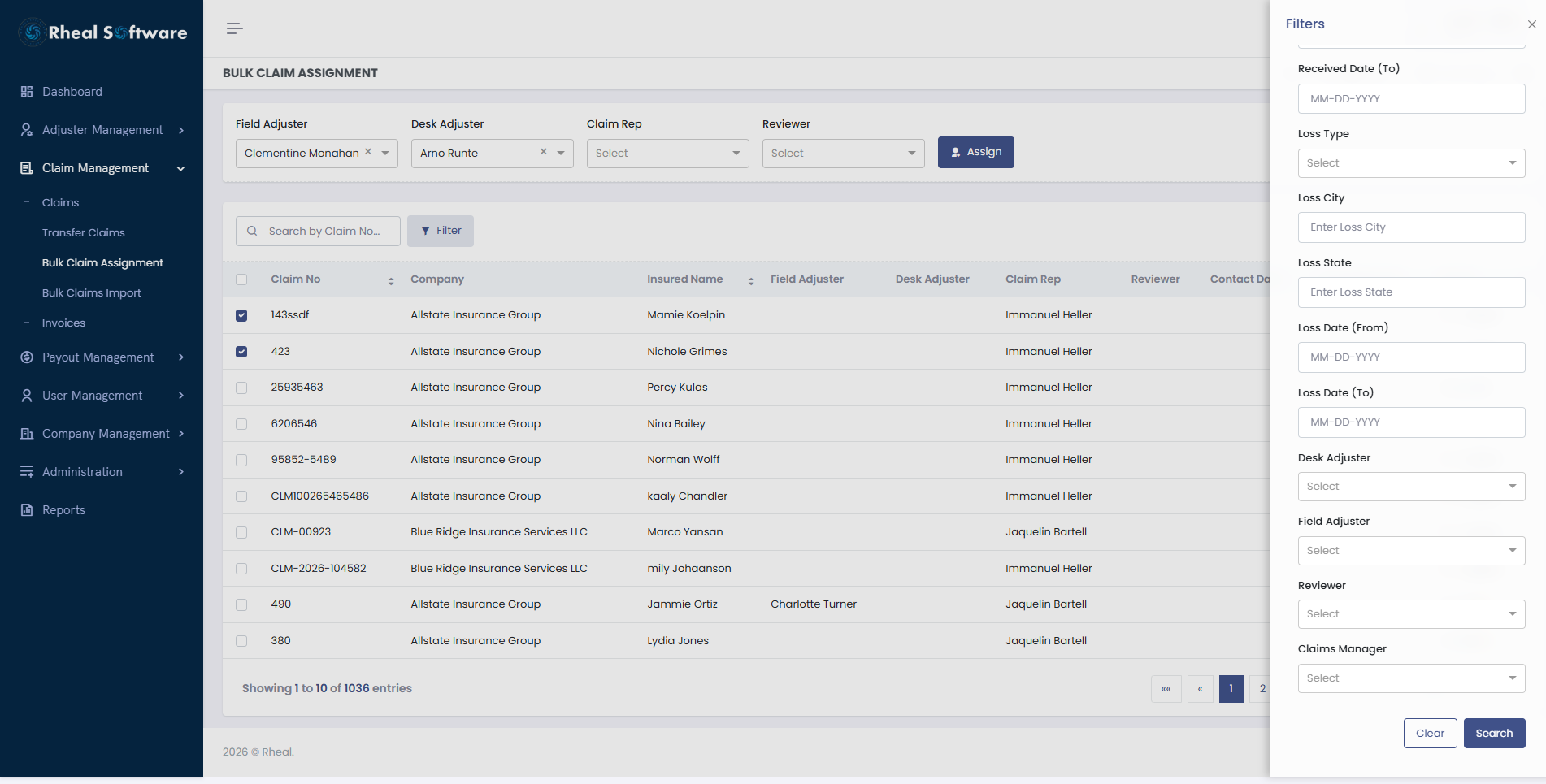
Bulk Claim Assignment: The Bulk Claim Assignment screen enables efficient mass allocation of claims to different roles in the claims processing workflow. It features a comprehensive interface where multiple claims can be simultaneously assigned to Field Adjusters, Desk Adjusters, Claim Representatives, and Reviewers, along with advanced filtering options to help manage large volumes of claims effectively.
5. Insurance Company Management
Managing your network of insurance carriers is built right into the system. You can easily add and maintain insurance company profiles, track their contact details, guidelines, and special handling instructions, ensuring that each claim is processed in alignment with the carrier’s expectations.
Watch the video demonstration to see the Insurance Company functionality in action: Insurance Company.mp4.
-
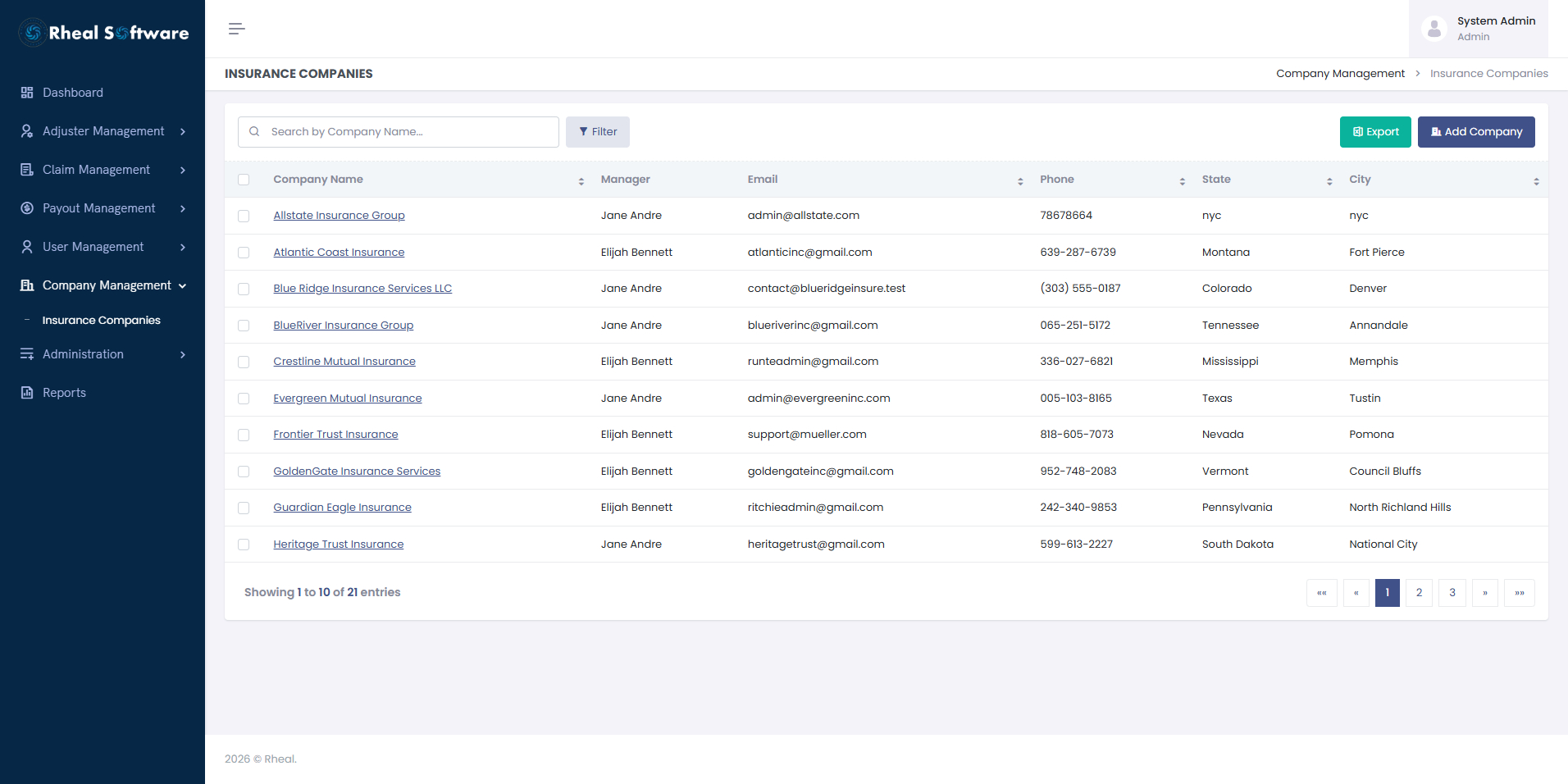
Insurance Company List: This screen lists all registered insurance companies in the system, displaying details such as company name, manager, email, phone number, state, and city. Users can search, filter, and add new companies using the "Add Company" button.
-
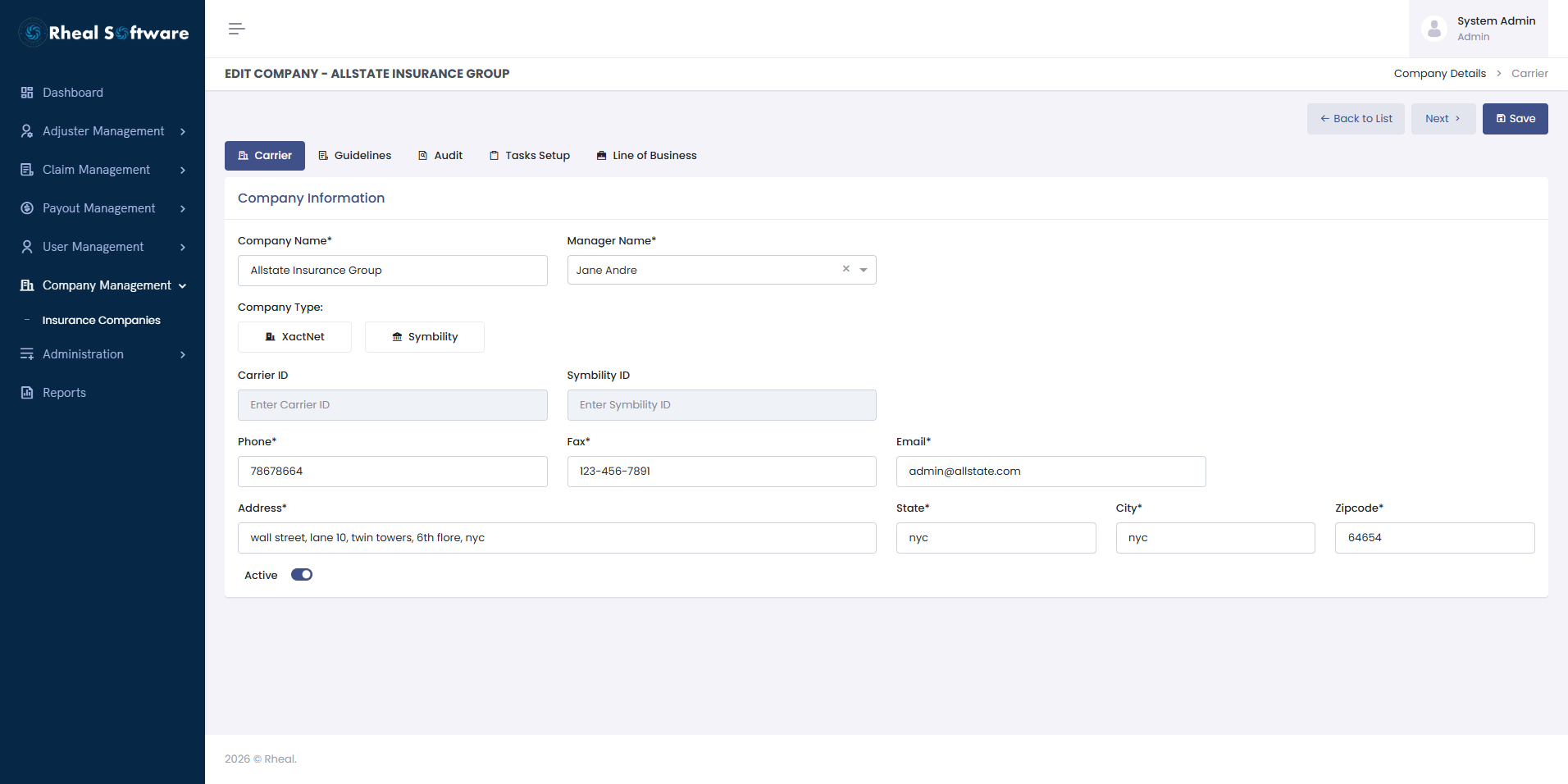
Insurance Company Details – Carriers: This screen displays the company details management interface within the Claims Management system. It allows users to view, enter, or update information related to an insurance company.
-
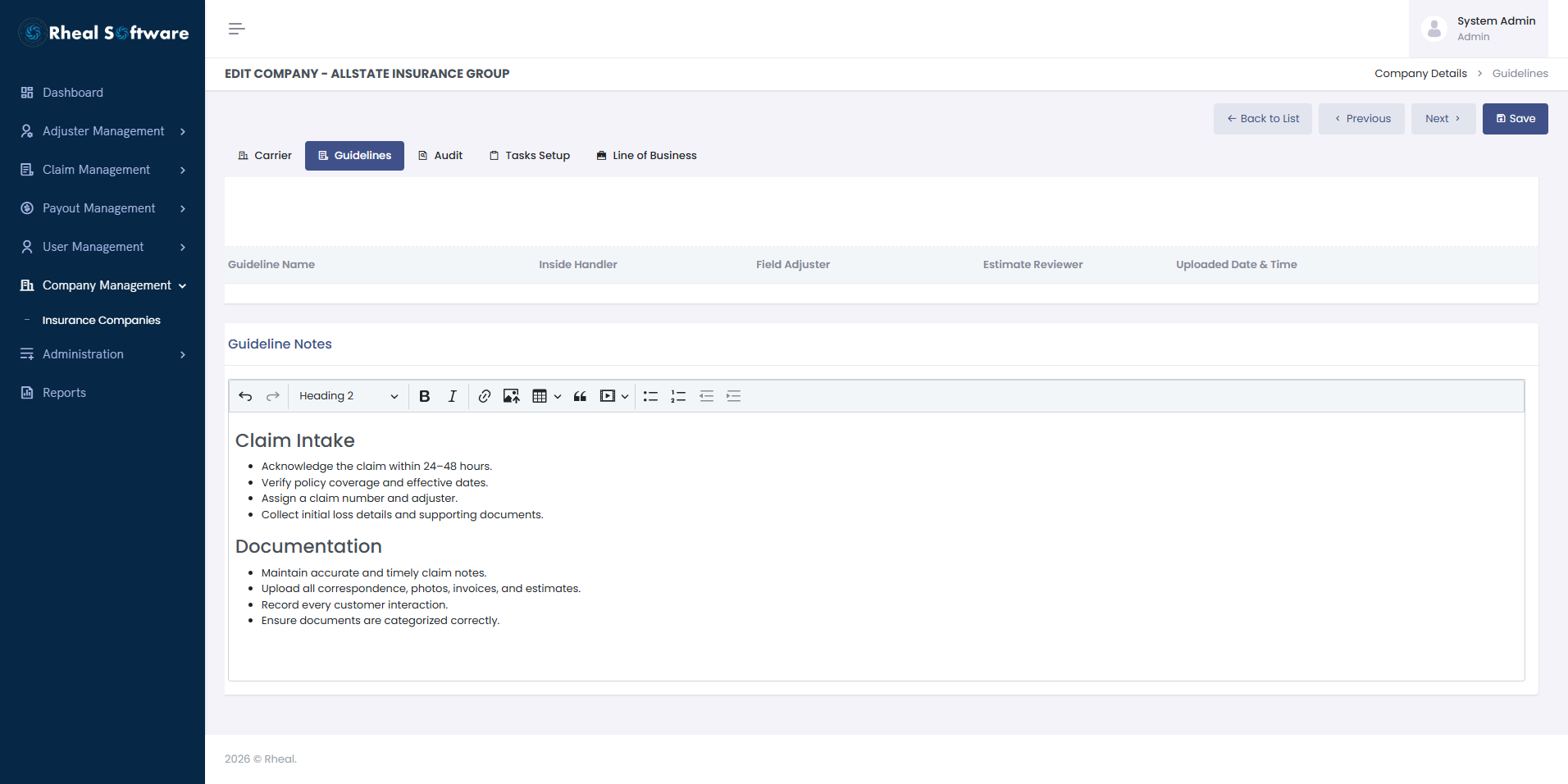
Insurance Company Details – Guidelines: This screen provides functionality to upload and manage company-specific guidelines within the Claims Management system.
-
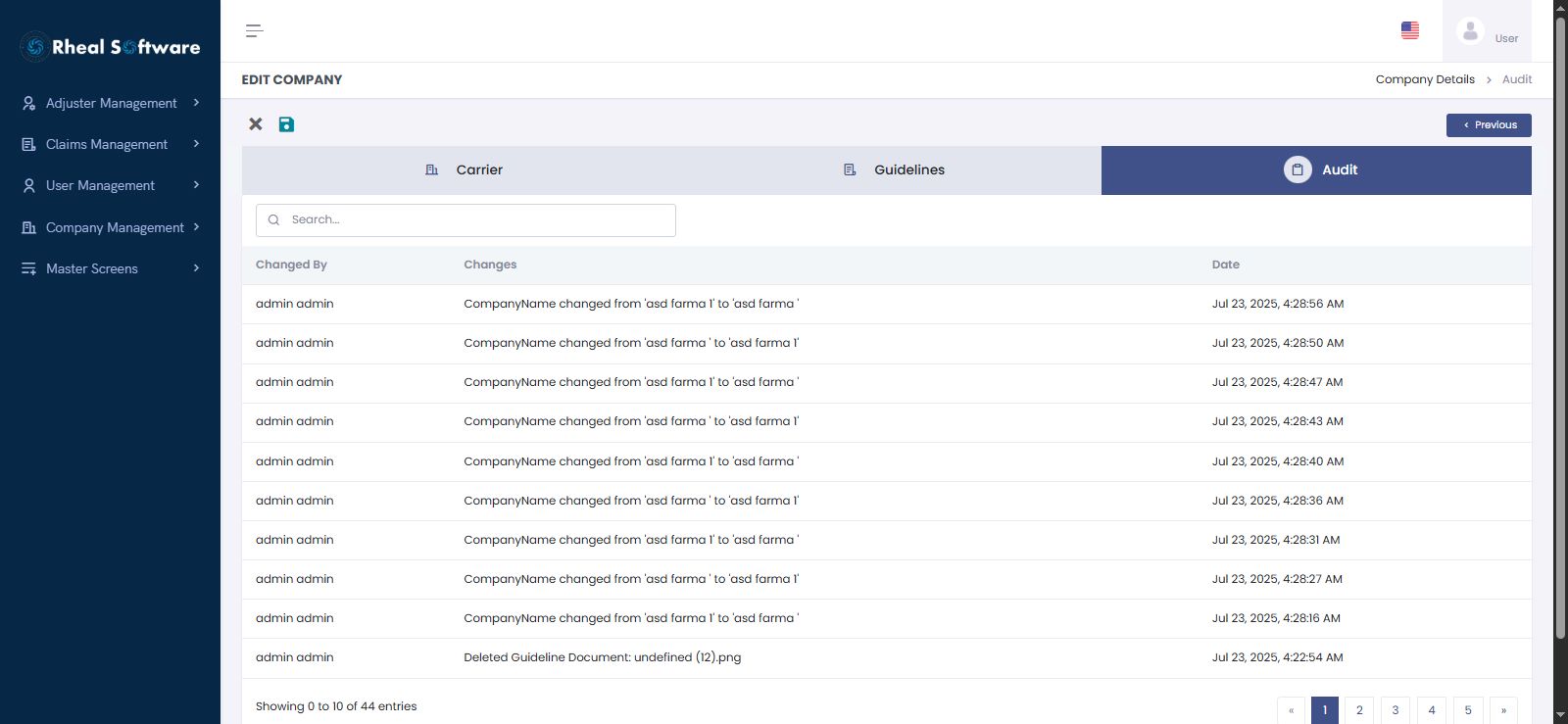
Insurance Company Details – Audit: This screen displays the Audit tab within the Claims Management system, showing a chronological log of all changes made to a company’s profile. It helps track who made what changes and when, supporting accountability and compliance.
-
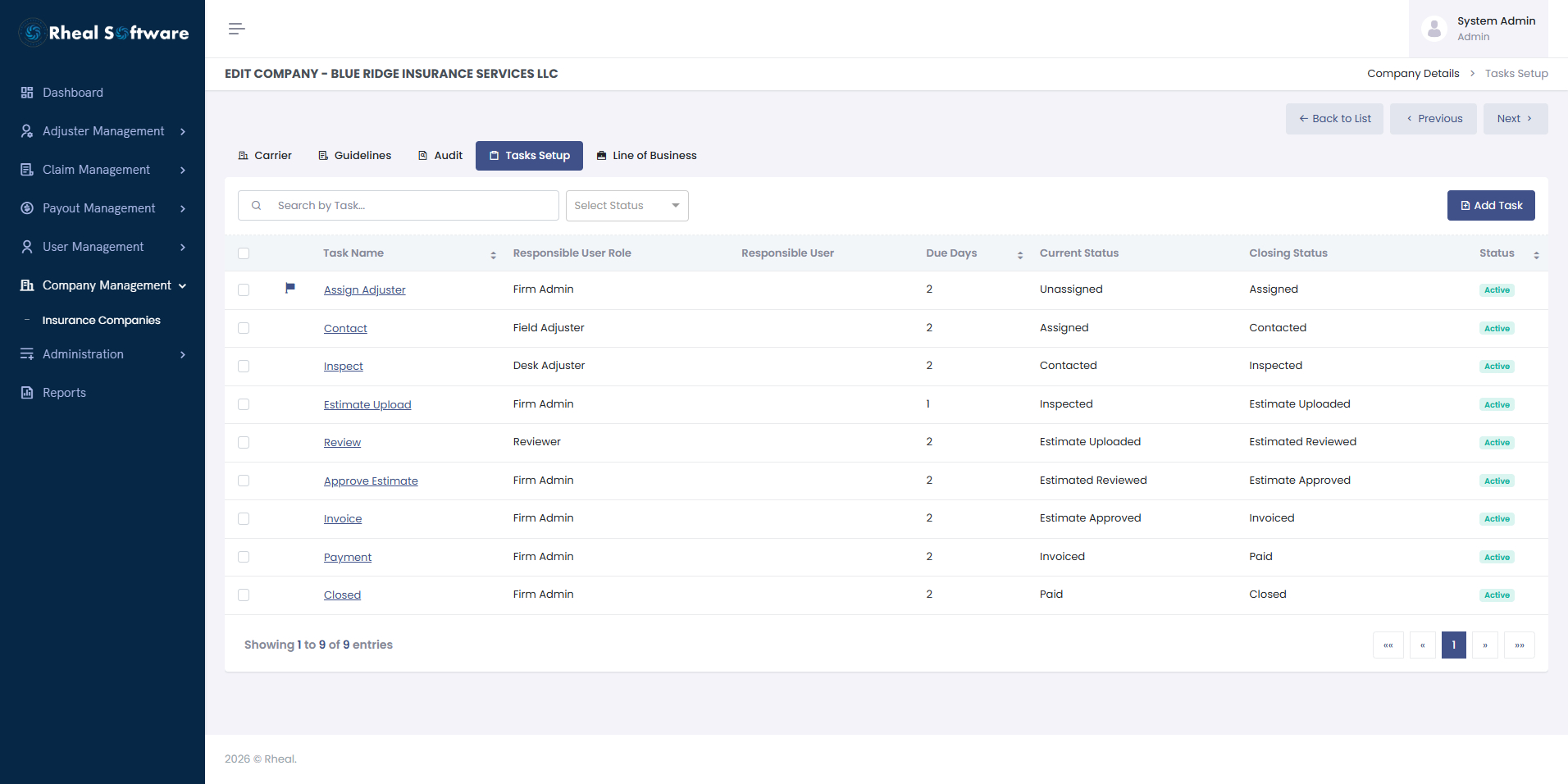
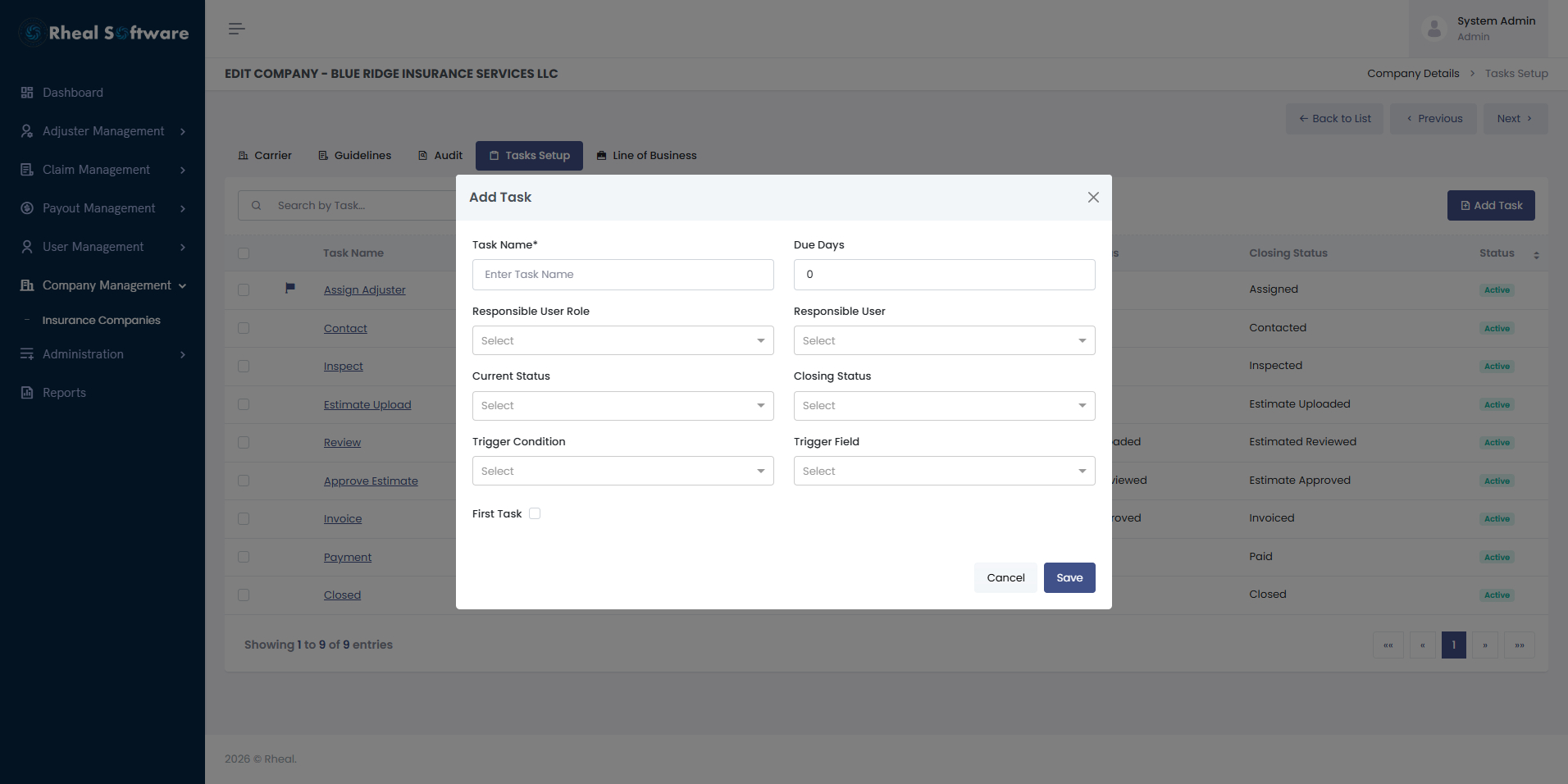
Insurance Company Claim Task Setup: The Claim Tasks screen allows administrators to configure and customize the default task flow based on the requirements of a specific insurance company. All claims associated with that company will automatically follow the sequence of tasks defined here.
-
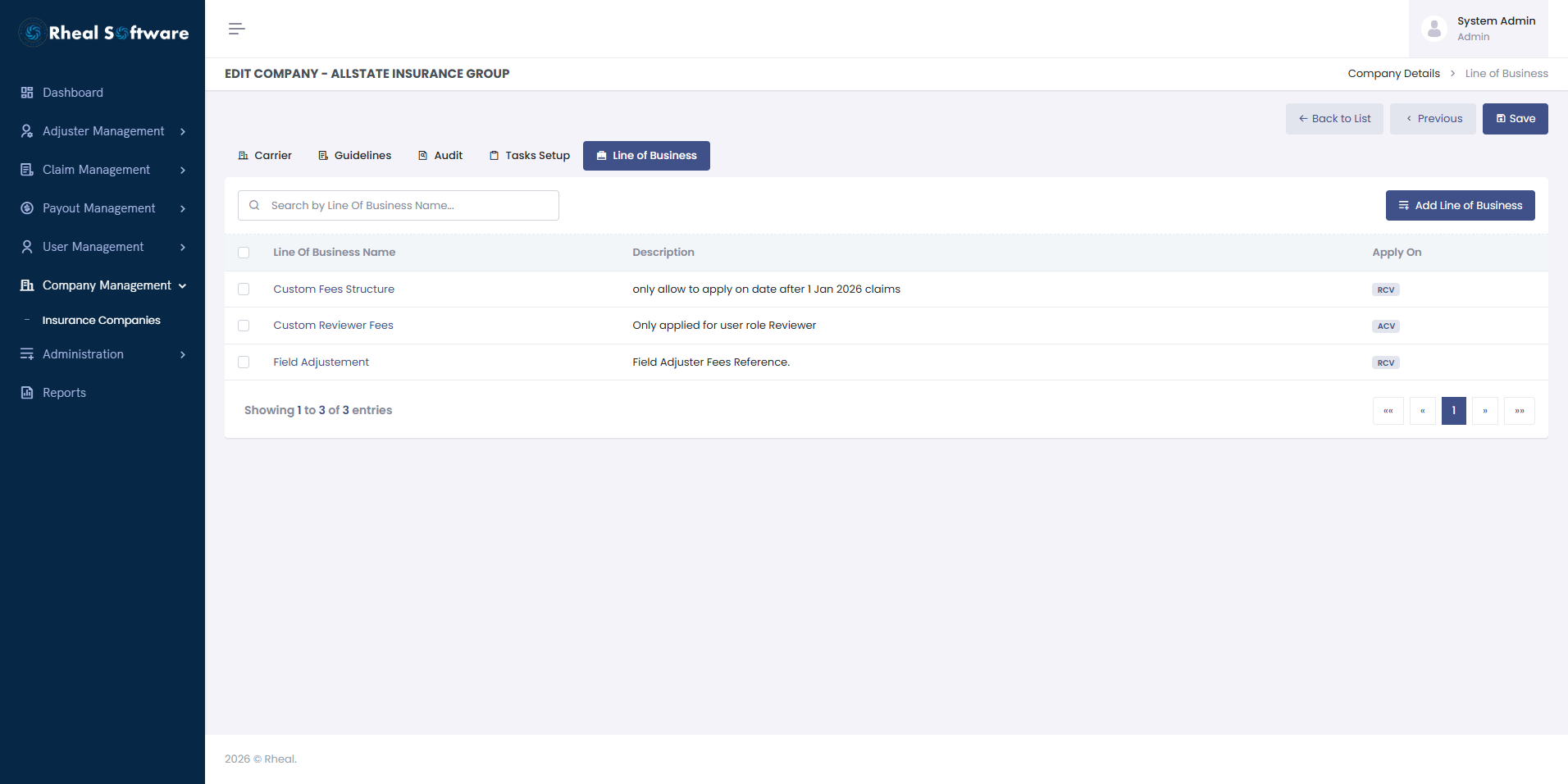
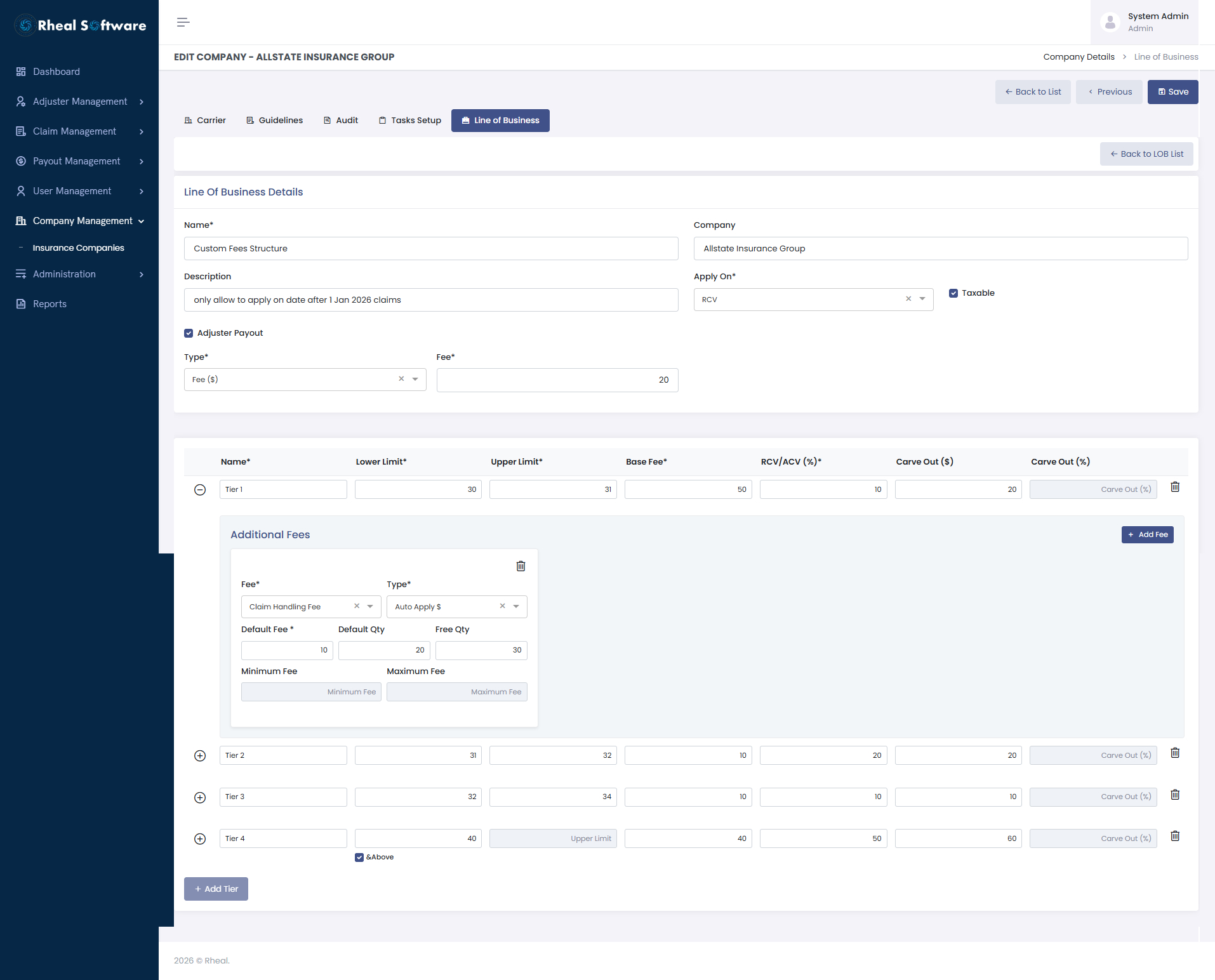
Line of Business Configuration: The Line of Business (LOB) configuration module allows administrators to define and manage the different service offerings associated with each insurance carrier within the Claims Management System. From a centralized interface, users can create and maintain multiple business lines—such as property inspections, catastrophe claims, or scheduling services—along with their applicable claim types.
The system provides flexible configuration of tier-based pricing structures and additional service fees, enabling organizations to define base fees, percentage adjustments, and supplementary charges such as inspection or travel fees. This allows carriers and adjusting firms to align service pricing with contractual agreements and operational requirements.
By providing a structured and configurable framework for managing service definitions and pricing models, the LOB module helps streamline claim operations, improve billing accuracy, and support scalable claim handling across multiple insurance carriers.
6. Invoice Management
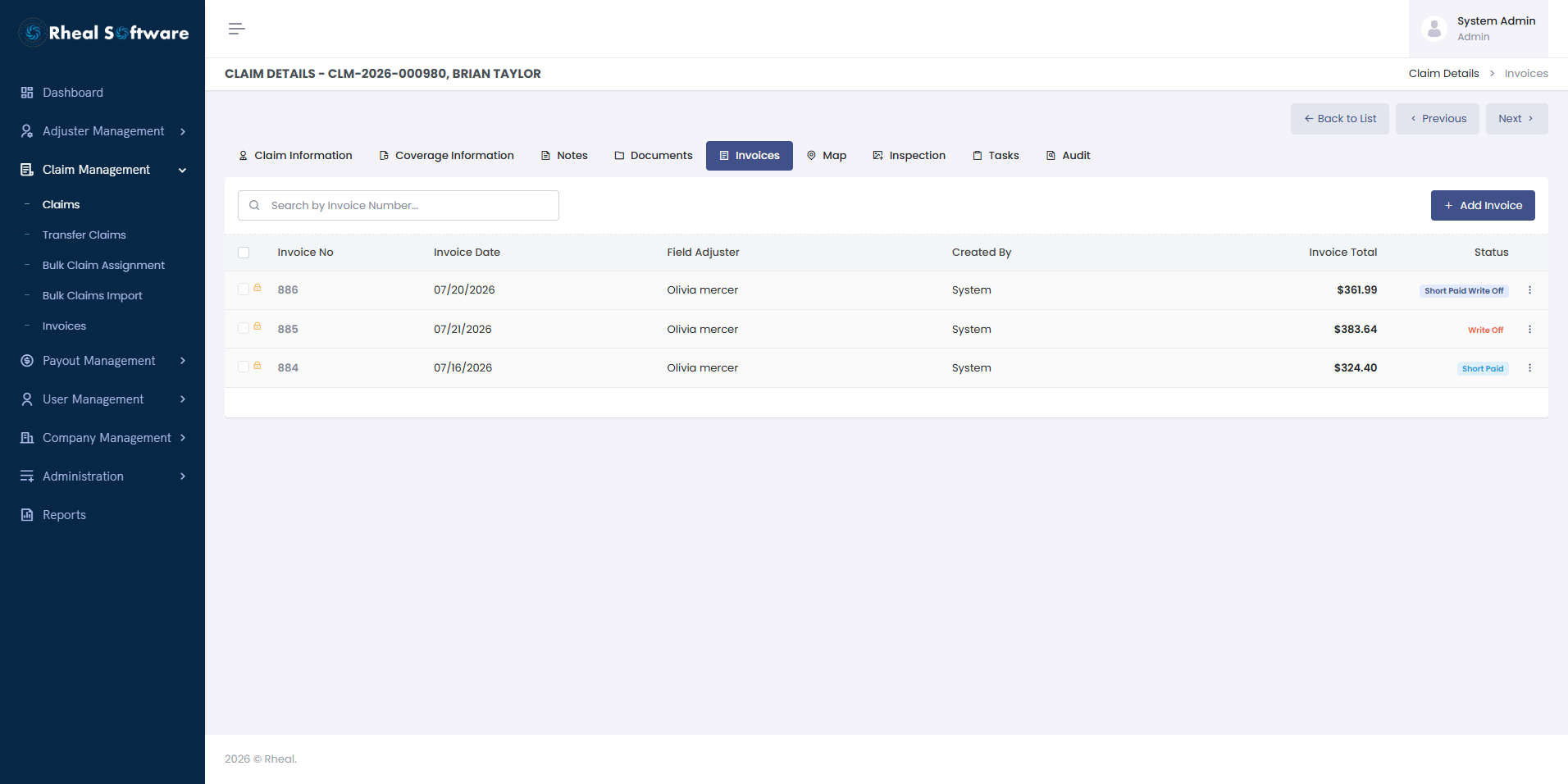
The Invoice Management module enables claims administrators to efficiently generate, manage, and track invoices associated with individual claims within the Claims Management System. From the invoice listing screen, users can quickly view all invoices related to a claim, including invoice numbers, dates, assigned adjusters, total amounts, and payment status. This centralized view provides transparency into billing activities and helps teams monitor invoice lifecycle stages such as open, paid, or short-paid.
By integrating invoicing directly within the claims workflow, the system streamlines financial management, improves billing accuracy, and enhances transparency across claim operations.
-
Invoice List: This screen displays all invoices generated for a claim in a single, searchable view. It enables users to quickly review invoice details, track payment status, and access invoices for further review or updates.
-
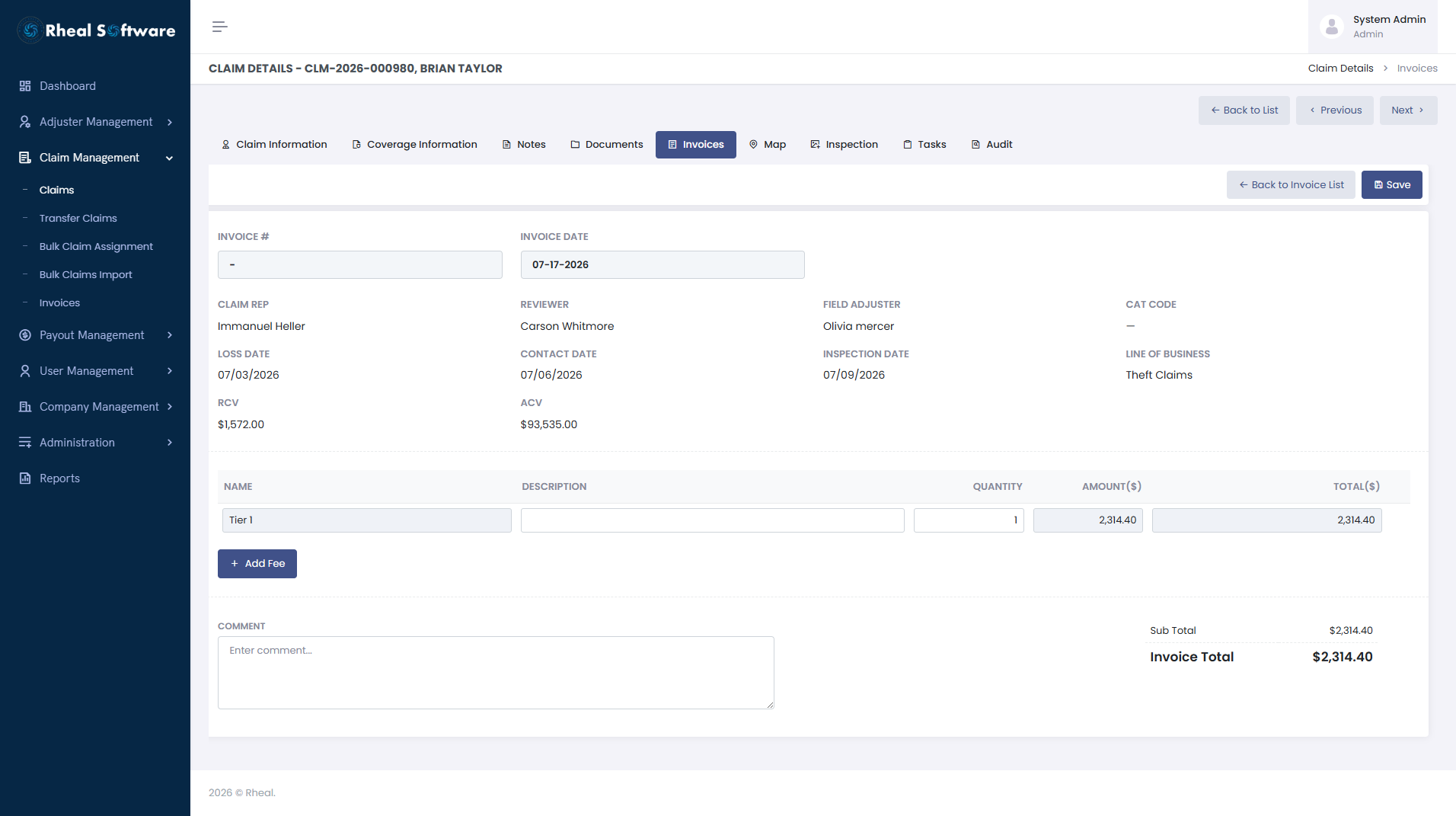
Create Invoice: This screen allows users to generate detailed invoices based on configured line-of-business fee structures and additional service charges. Users can include tier-based service fees, supplementary charges such as travel or inspection fees, and automatically calculate taxes and totals. This flexible configuration ensures that invoices accurately reflect the services performed and comply with carrier-specific billing rules.
-
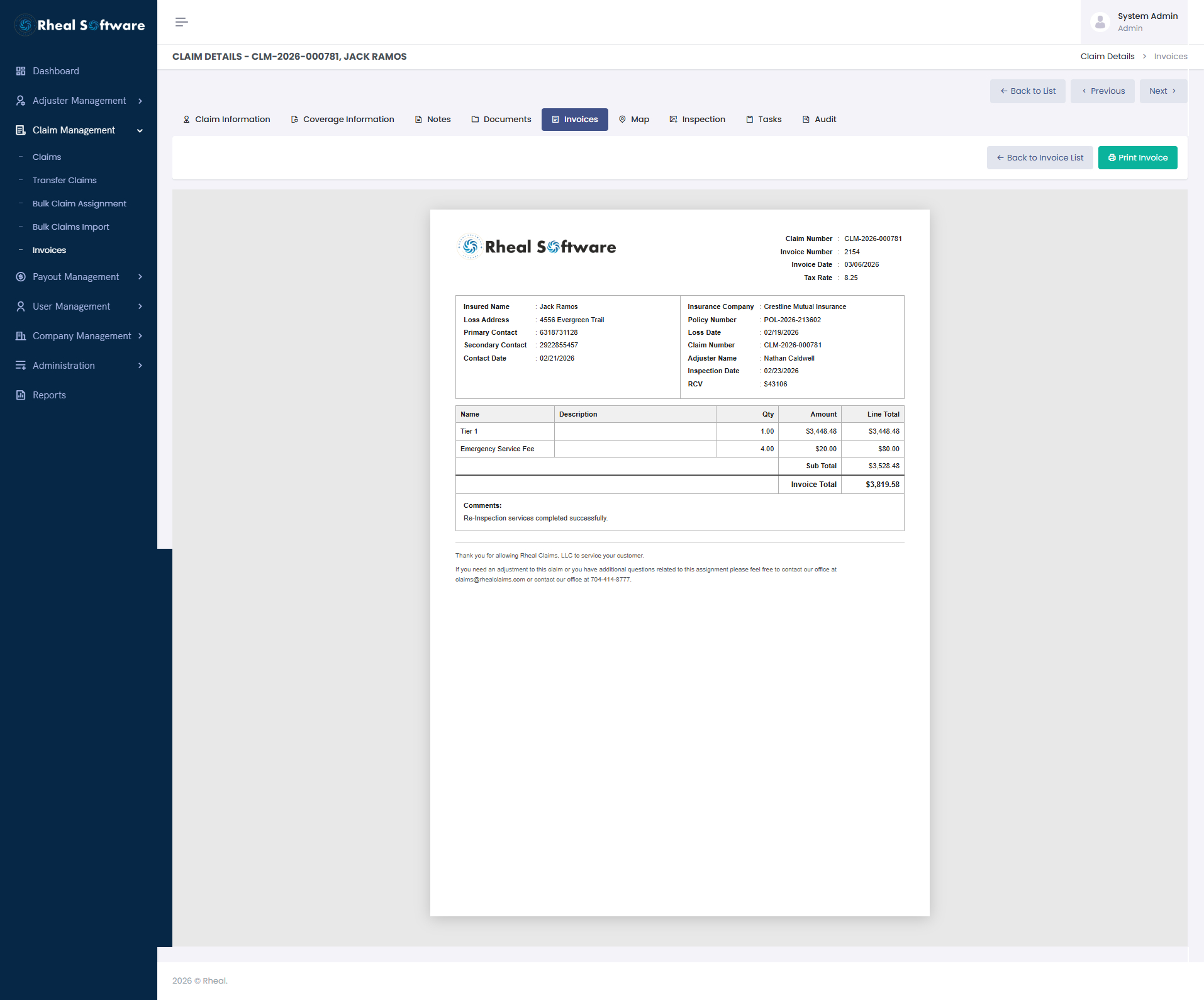
Invoice Preview and Print: This screen provides a professionally formatted invoice summary that includes claim details, service descriptions, quantities, and financial breakdowns. Users can review and print invoices for distribution to insurance carriers or clients, ensuring clear documentation and standardized billing records.
-
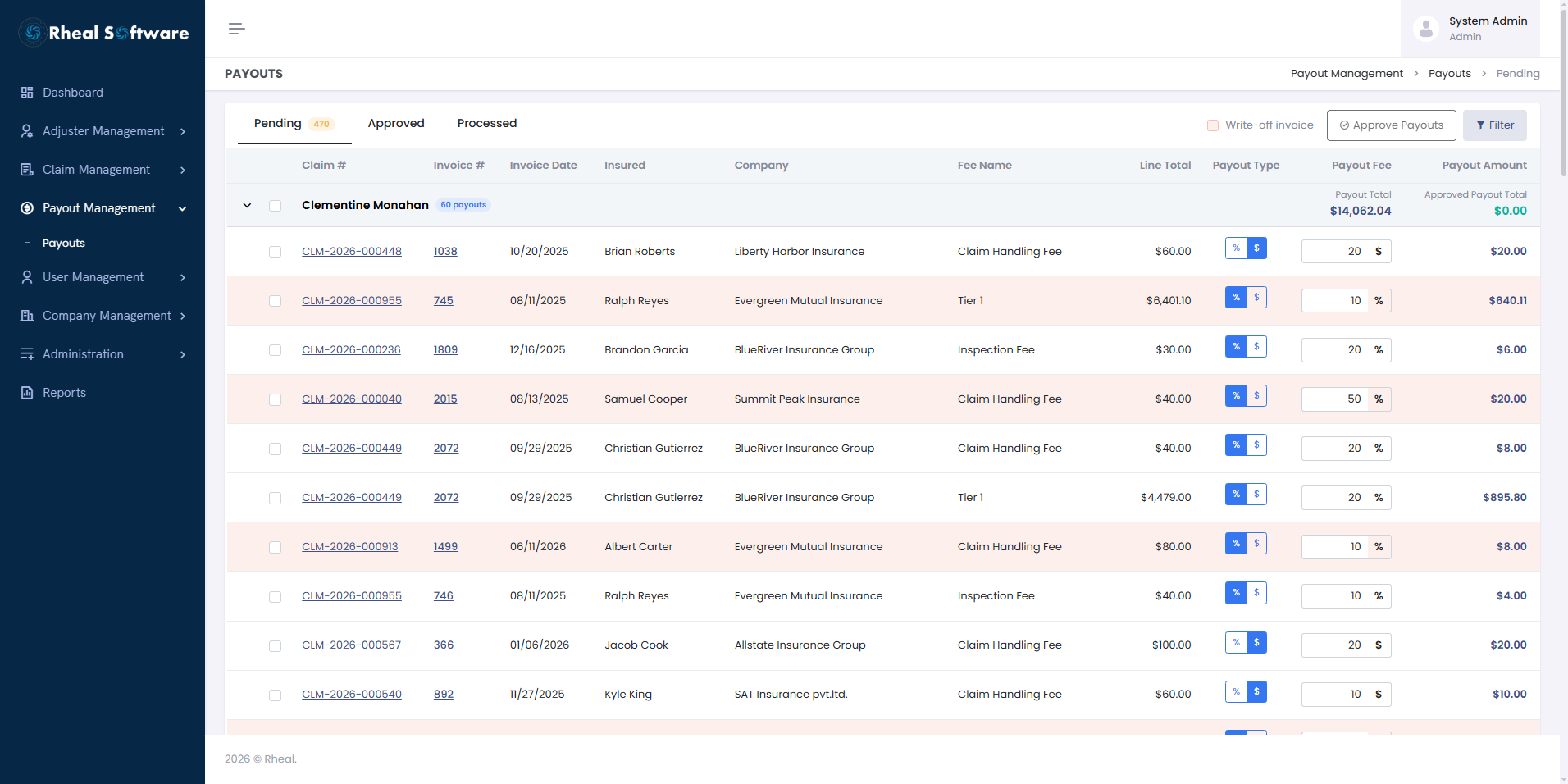
Pending Payouts – Overview: The Pending Payouts screen provides a centralized view of payout requests awaiting review and approval. Administrators can review adjuster earnings, invoice-based fee details, and configure payout values using fixed amounts or percentage-based calculations, ensuring accurate and transparent compensation processing.
-
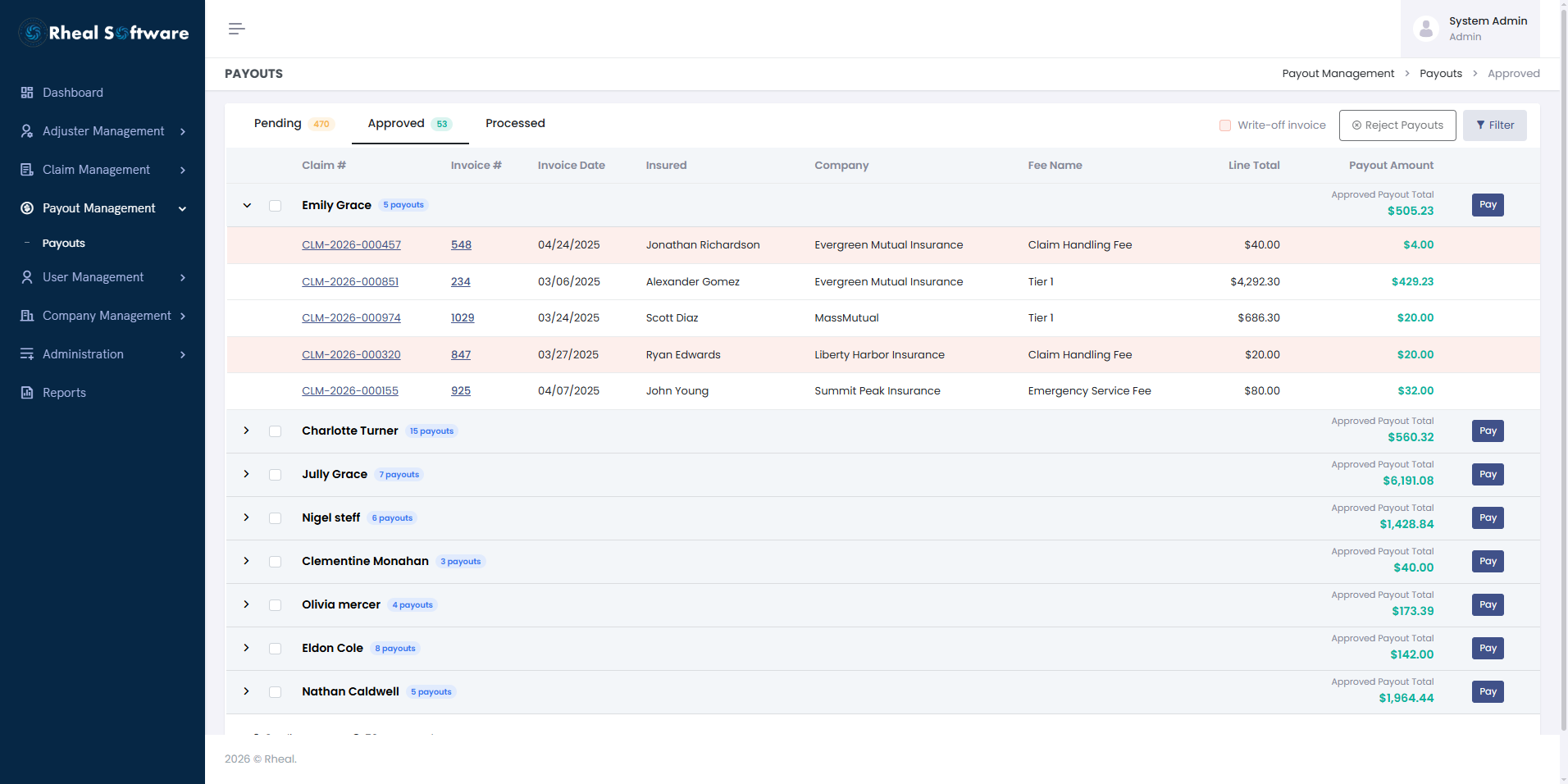
Approved Payouts – Overview: The Approved Payouts screen enables finance and operations teams to review validated payouts before final payment processing. Users can confirm payment details, define payment methods, and maintain visibility into approved payout amounts, streamlining payout authorization and reducing processing delays.
-
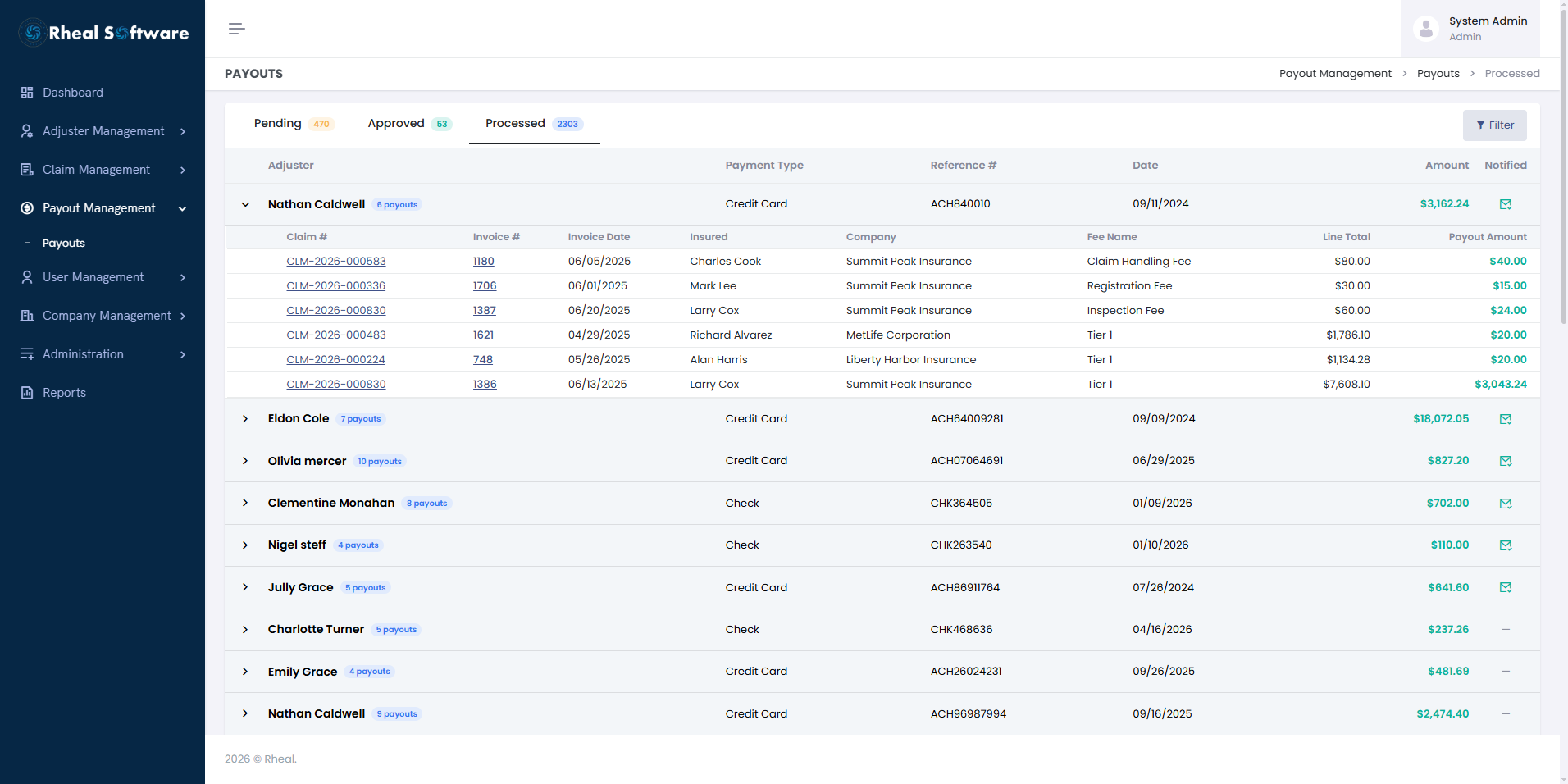
Processed Payouts – Overview: The Processed Payouts screen offers complete visibility into completed adjuster payments, including payment references, transaction dates, and payout amounts. The system also supports notification tracking, helping organizations maintain transparent payment records and improve financial accountability across adjuster operations.
7. User Management & Role-Based Access
Security and compliance are key. Our user management module allows you to create and manage user accounts, define roles, and assign permissions. This means every user sees only the data and actions relevant to their responsibilities — protecting sensitive information and keeping workflows clean.
Watch the video demonstration to see the User Management functionality in action: User Management.mp4.
-
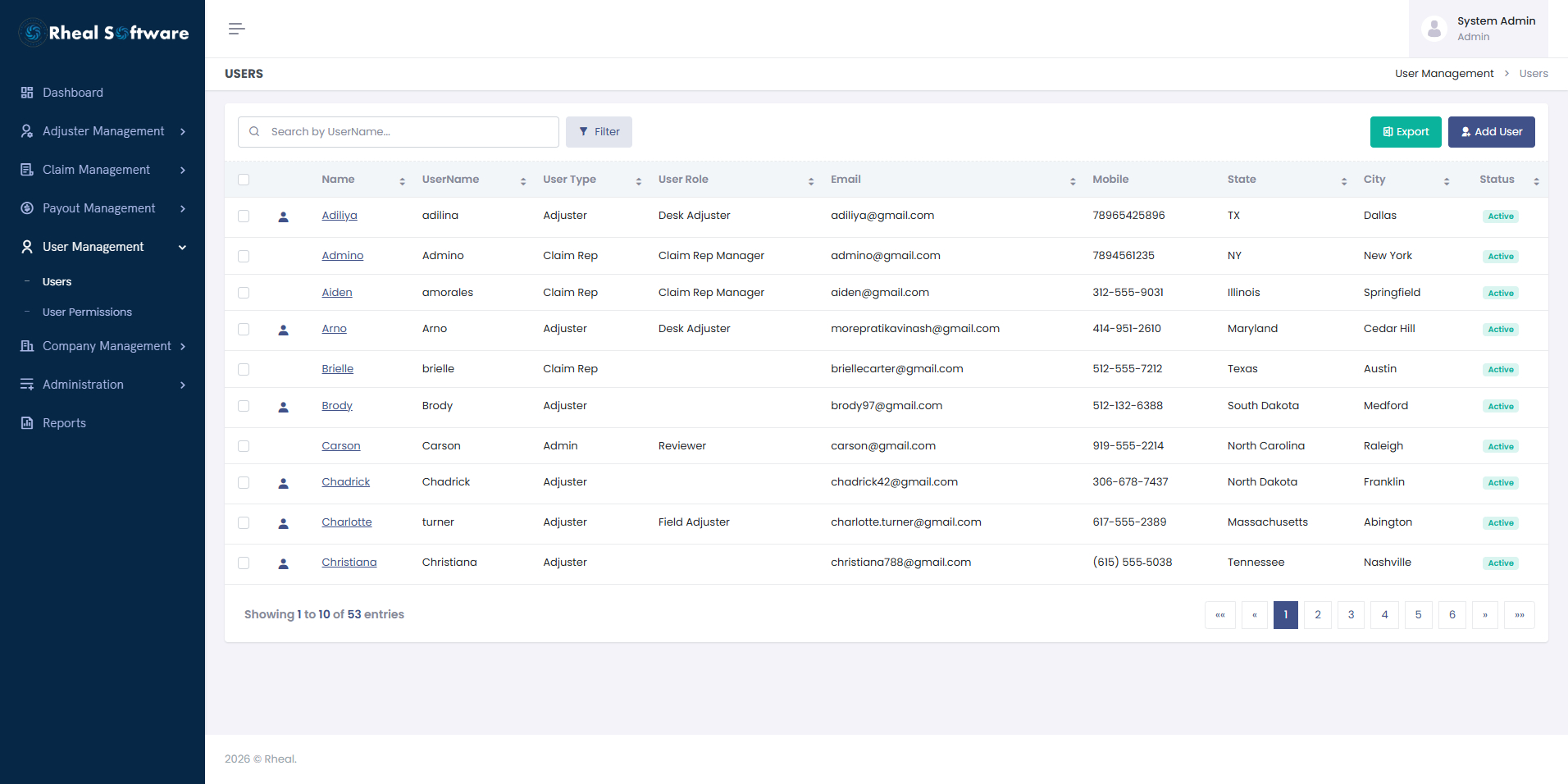
User List: This screen provides a full list of users who have access to the CMS. Admins can: Add or deactivate users, Assign user roles (e.g., Admin, Reviewer, Adjuster), Monitor user activity and login patterns
-
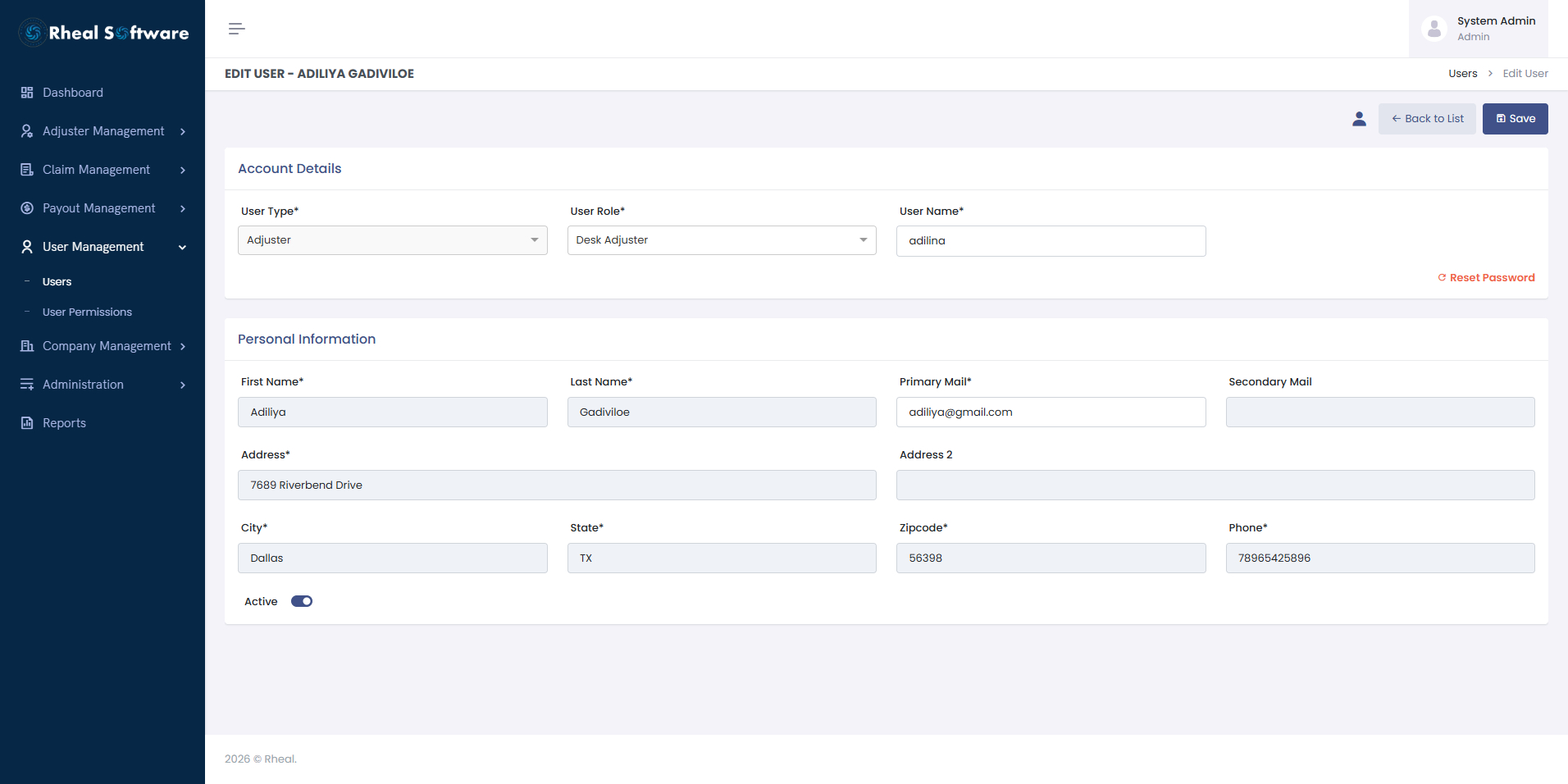
Add-Edit User: This screen allows admin user to add/edit user information.
-
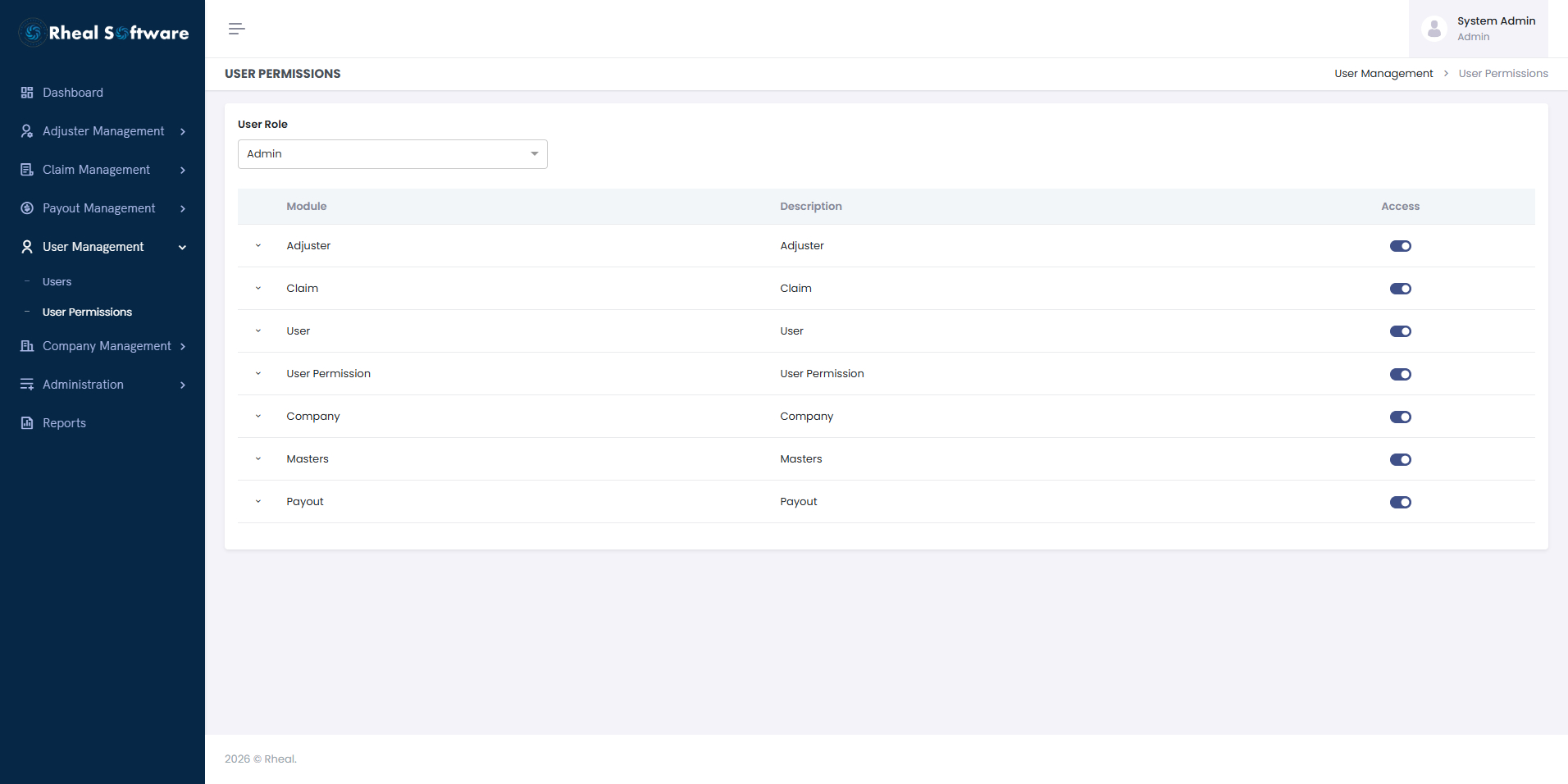
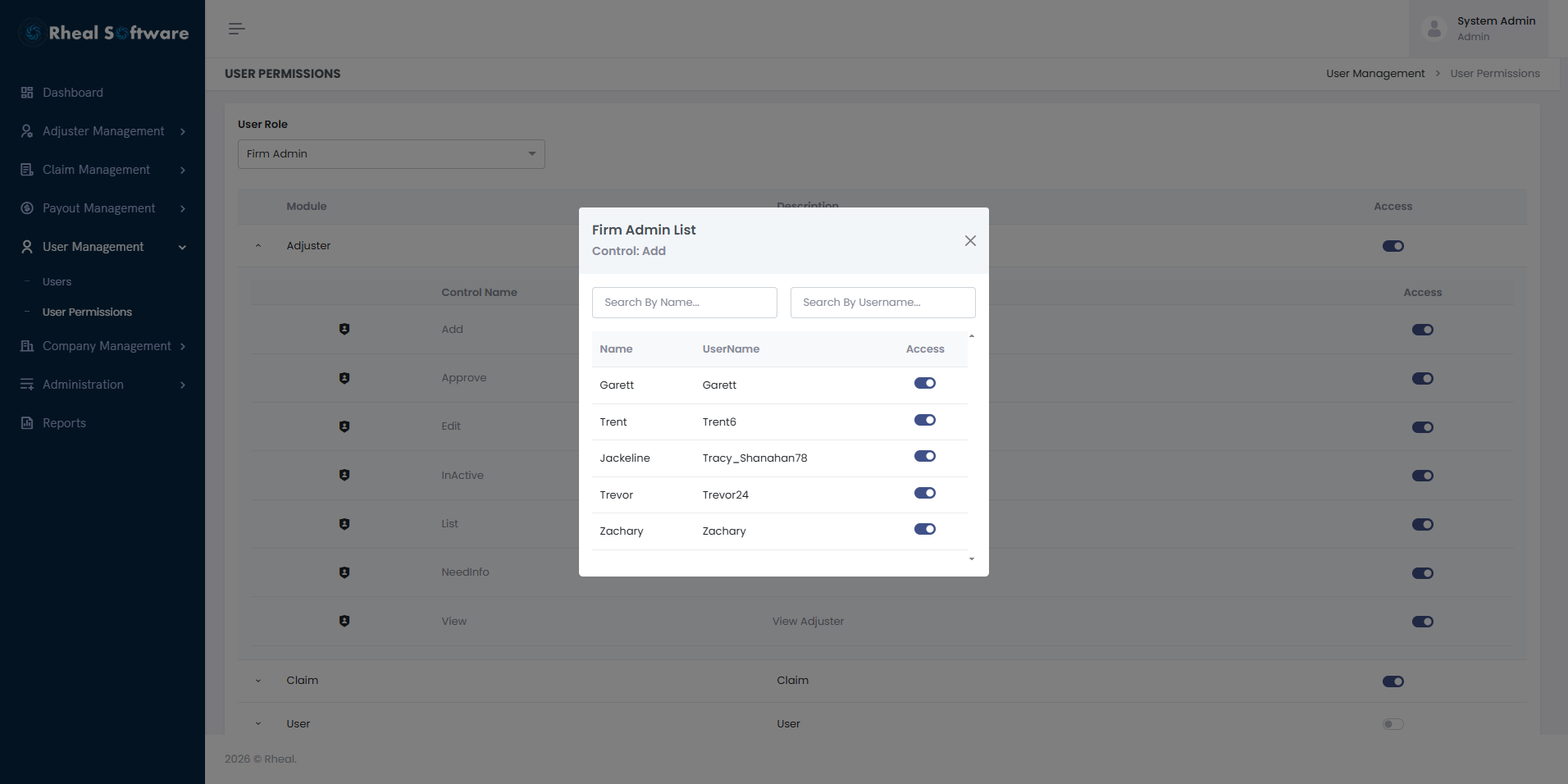
User Permissions: A more advanced permissions screen where access can be customized down to individual users. Admins can:Override default role-based access, Permit or restrict specific features (e.g., “Edit Claim Status” or “View Adjuster Documents”) for specific users, Use this fine-grained control to meet security and compliance needs without altering global role definitions
8. Adjusting Firm Management
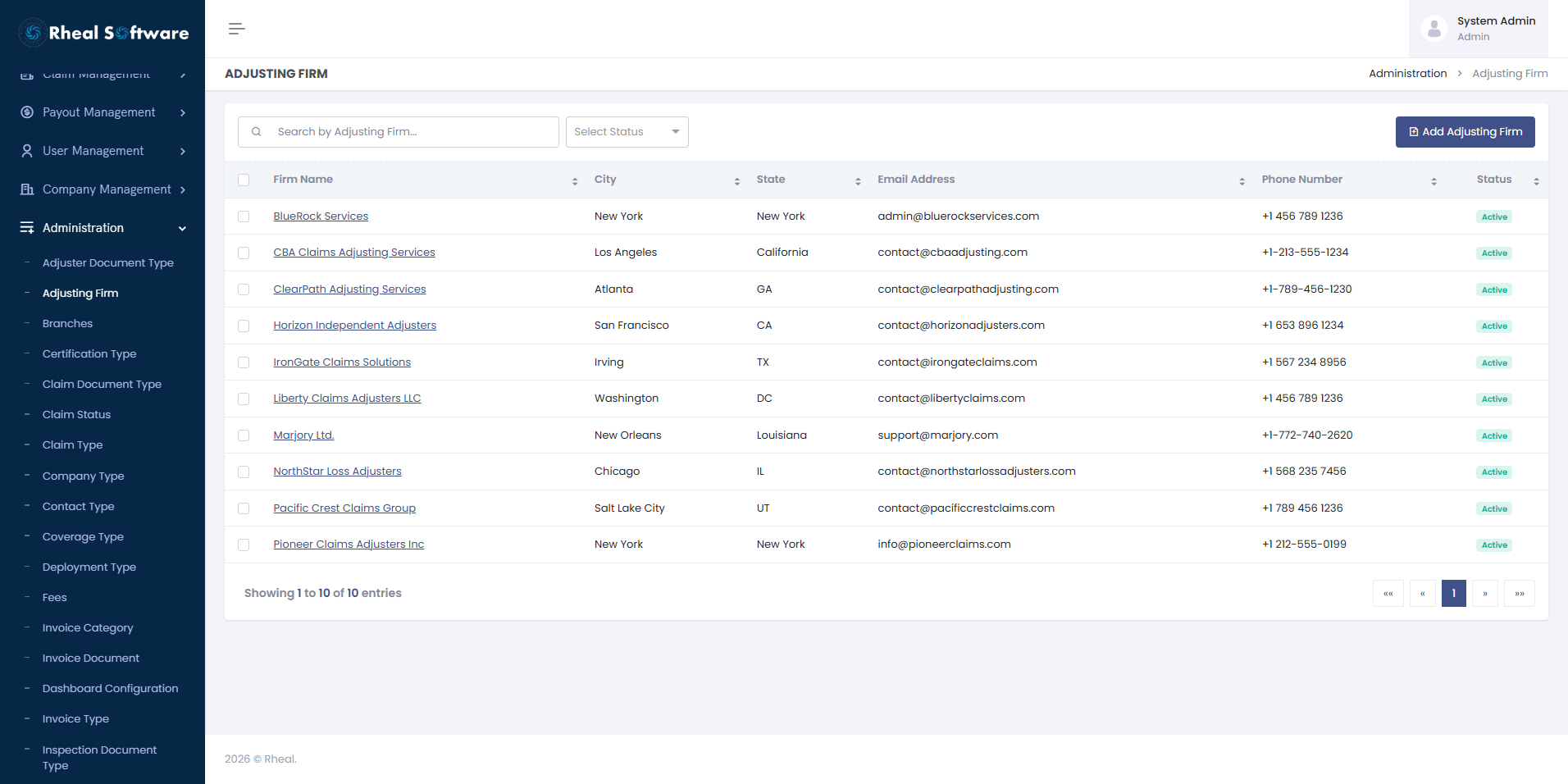
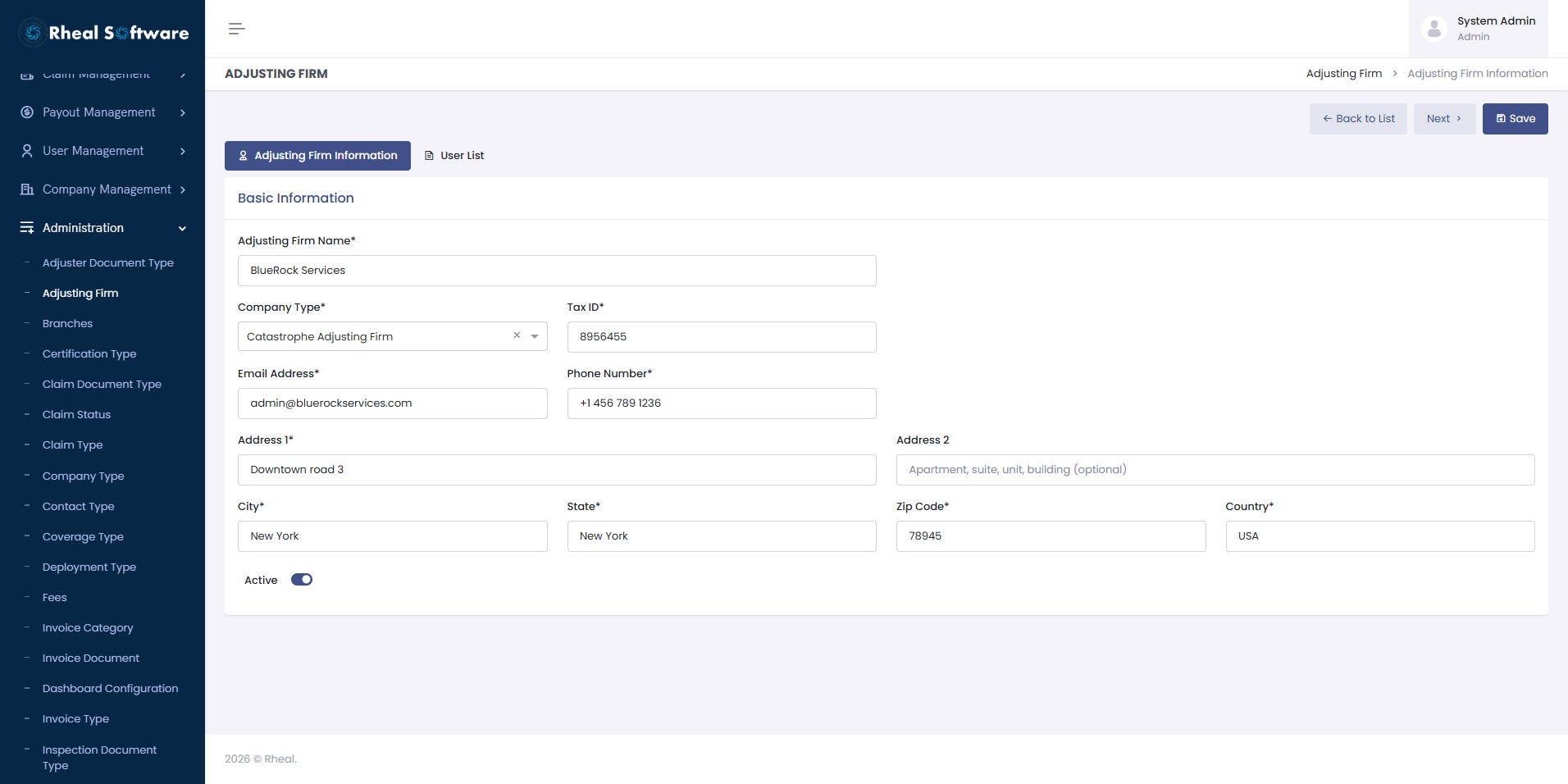
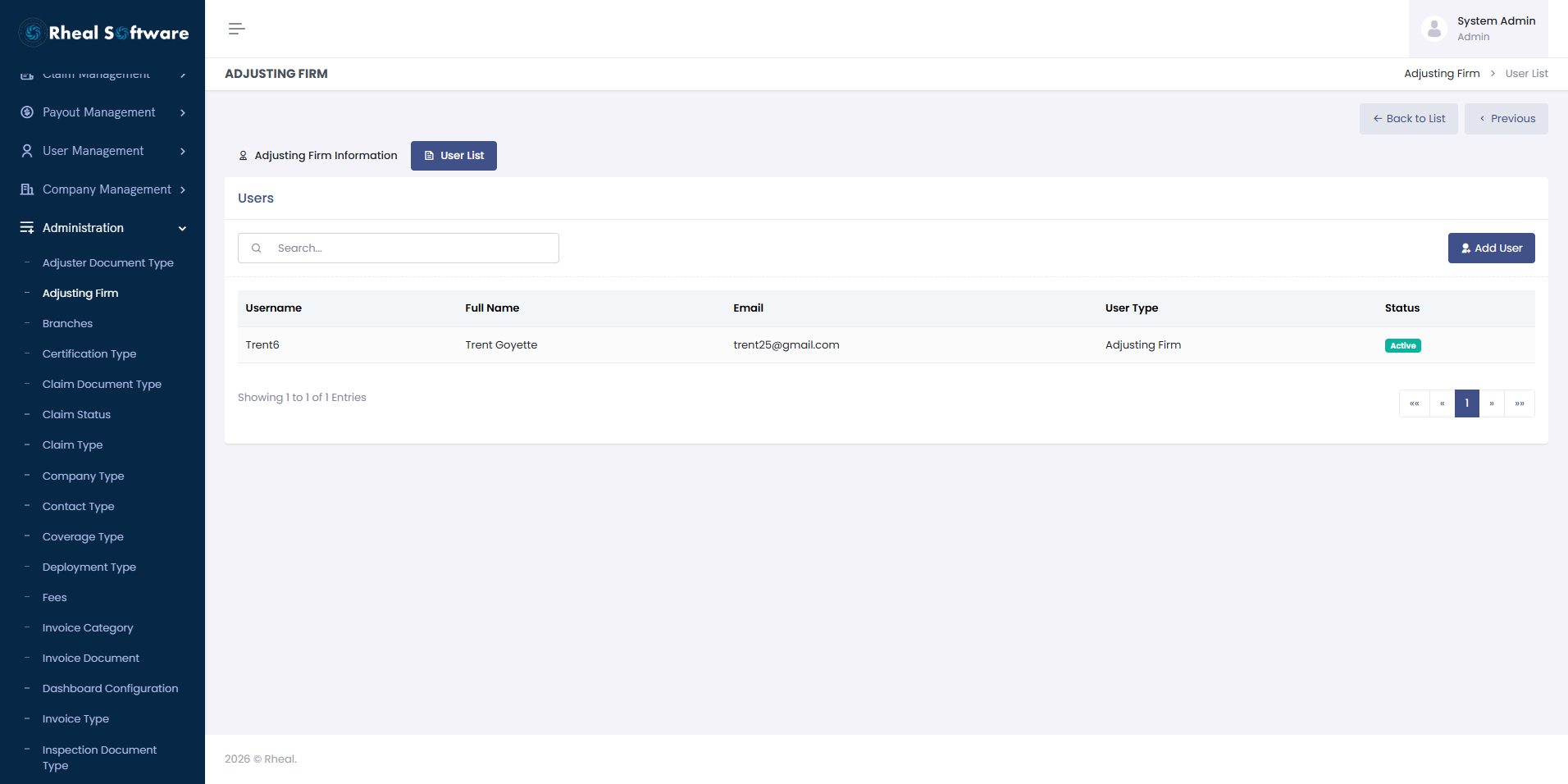
The Adjusting Firm Management screen enables administrators to centrally manage all external adjusting firms within the Claims Management System. From this interface, users can create, view, and maintain detailed profiles for each adjusting firm, including firm information, contact details, and operational status. In addition, administrators can provision and manage user accounts for each adjusting firm, allowing firm users to securely log in to the system. Adjusting firm users are provided controlled access to view and monitor the status of claims assigned to their organization, ensuring transparency, collaboration, and real-time visibility throughout the claims lifecycle. This capability strengthens partner engagement, improves communication with external firms, and supports efficient oversight of outsourced claim handling activities.
-
Adjusting Firm List
-
Adjusting Firm Detials
-
Adjusting Firm User List
What’s Coming Next
We’re actively working on expanding the system with a range of powerful integrations and advanced operational tools, all designed to save your team time, reduce manual effort, and give you deeper insight into your business. Here’s what’s on the horizon:
1. Symbility & Xactimate/XactAnalysis Integration
These are two of the most widely used estimating and claims platforms in the industry. Once integrated, your team will be able to pull estimates, track assignments, and sync updates directly within the CMS, eliminating duplicate entry and keeping everything up to date.
2. VIP Integration
Many carriers and contractors rely on VIP for seamless claims assignment and tracking. This integration will allow claims to flow automatically between systems, improving turnaround times and reducing the need for manual uploads.
3. QuickBooks & Sage Intacct Integration
Managing the financial side of claims becomes much simpler with direct links to accounting systems. We’re building integrations with both QuickBooks and Sage Intacct so your invoices, payments, and financial records stay aligned without manual reconciliation.
4. Claims Aging Reports
To help you keep a close eye on how long claims have been open and identify bottlenecks, we’re building detailed claim aging reports. This will give managers and executives a clear view of claims by age brackets, so you can prioritize follow-ups and improve cycle times.
5. AR & AP Tracking
We’re adding robust Accounts Receivable (AR) and Accounts Payable (AP) modules that will allow you to track outstanding payments and obligations tied to each claim. This ensures your team always knows what’s owed to you — and what needs to be paid out — enhancing cash flow visibility.
These upcoming features will turn your Claims Management System into not just a claims processing tool, but a comprehensive operational and financial hub — giving you the insights and control you need to run your business more profitably and efficiently.
Who can use the CMS?
Our Claims Management System is built to support the entire ecosystem around insurance claims — from field adjusters to back-office teams and executives. Here’s a quick the list of different types of users who benefit from the platform and how it fits into their day-to-day work:
1. Adjusters & Field Inspectors
2. Claims Managers & Supervisors
3. Accounting & Finance Teams
4. Insurance Company Representatives
5. Executives & Owners
Final Note
We’d be happy to walk you through a live demo of the current modules and give you a preview of what’s in the pipeline. Our goal is to make sure your team spends less time on manual processes and more time serving customers — with the confidence that everything is tracked, auditable, and running smoothly.